Introduction
In the contemporary world, large amounts of data paired with intelligent analytics provide important value to organizations that are looking to deliver the best product possible to their customers. Cloud computing with Azure and Azure Data Factory services allows creating and using complex ETL and ELT processes on relational and unstructured data which can be a huge challenge if you try to build such a complex system for these tasks by yourself. With the client libraries for Azure Data Factory, we are going to show how you can trigger and monitor Pipelines through Web API built with .NET.
Sections:
Requirements
Data Factory
.NET Backend (Client Application)
Showcase
Conclusion
Requirements
To follow this tutorial you will need to have:
Azure Subscription - To authenticate, create Data Factory and Pipelines. Free Trial
IDE or Code Editor - to write client applications (Visual Studio, JetBrains Rider, VSCode…)
API/REST Development Tool - if you don’t want to use Swagger to test the API actions (Postman, VSCode Rest, Insomnia REST Client…)
Azure subscription and setup
Note: If you have this already configured, you can skip to the next section.
Free trial Azure subscription lasts 12 months and gives you 200$ worth of Azure services and products which is more than enough to complete this tutorial. For the most basic usage, we will need to have the following things set up:
Resource Group - Hold related resources together (in our case it’s only a Data Factory resource, but it could also include Database, Blob Storage, Web App, Azure Function App, etc..)
Data Factory - To create, run and monitor pipelines
Azure AD App Registration - To authenticate and receive access tokens for using Data Factory
Resource Group can be created by navigating to the Resource Groups tab on the Azure Portal homepage.
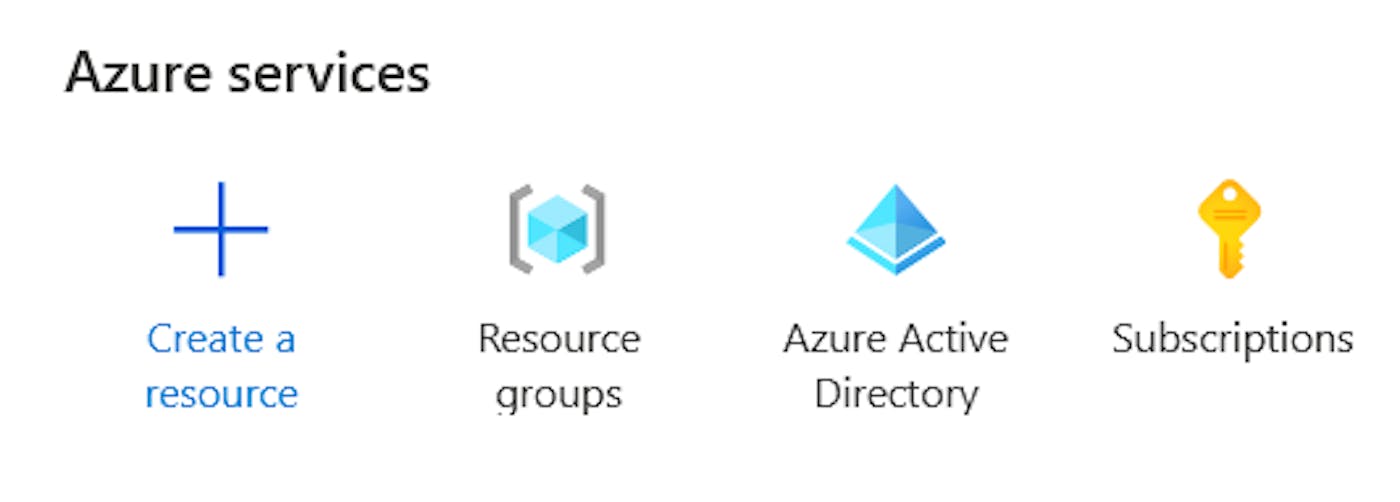
Click on the Create button and follow the simple 3 step process

After completing the creation process, the resource group will be displayed in the Resource Groups tab.
Next, we need to set up the App Registration in Azure AD. App registrations provide an identity platform for applications to authenticate and authorize against.
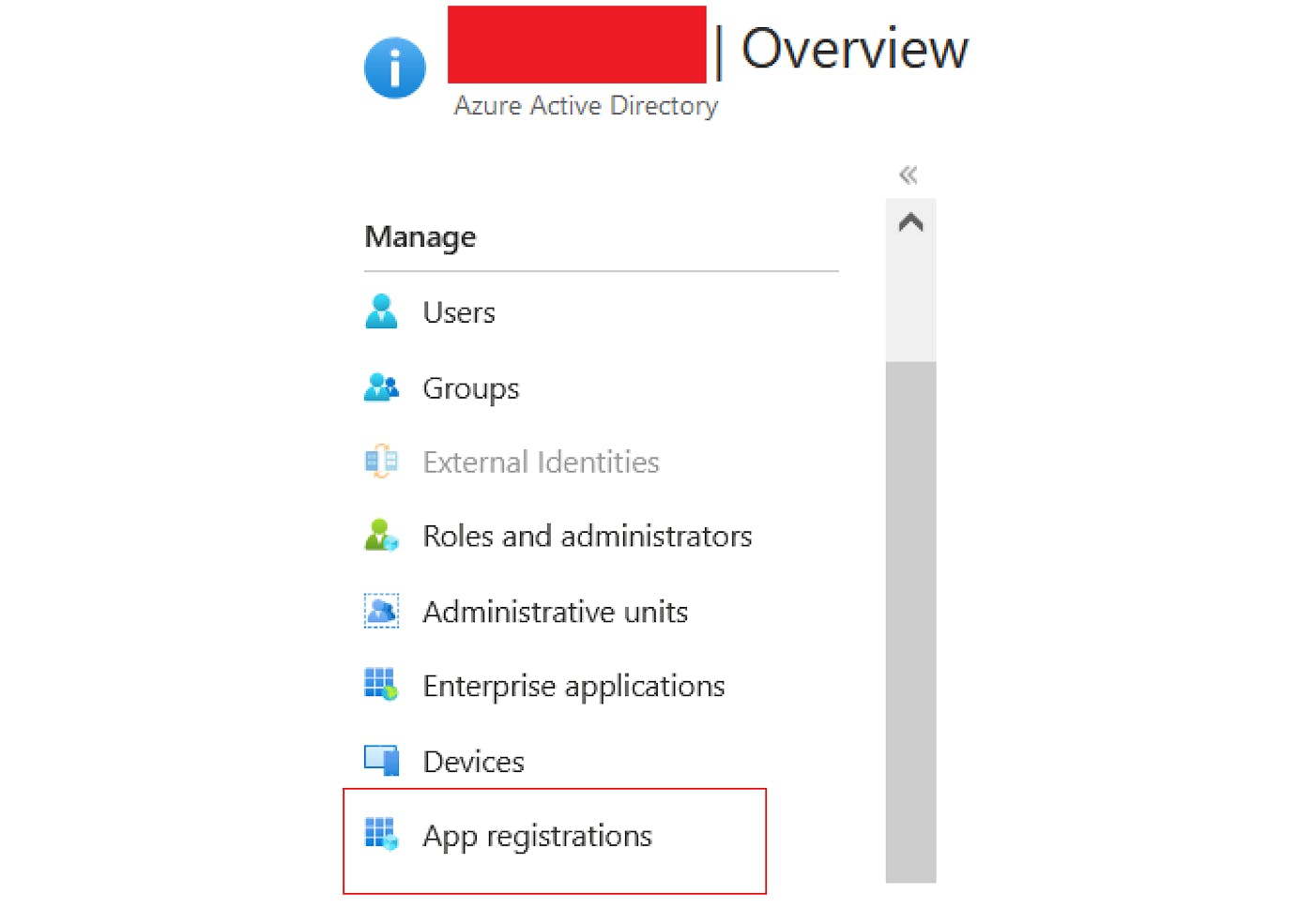
Navigate to the Azure Active Directory tab and under Manage on the left side, choose App Registrations. Create a new one by clicking on the New Registration button, for the Redirect URI you can specify the URL that your application will be running on (if you are running this locally you would put https://localhost:port/signin-oidc).
Besides creating the App Registration, we also need to create a Client Secret which will be used as a password to identify our client application with authentication service. This can be done by navigating to App Registration and clicking on Certificates & Secrets in the left sidebar under the Manage section. Switch to Client Secrets and click on the New client secret button. Enter description and expiration time and click on the Add button. Be sure to store this secret somewhere in a file because it will not be possible to see this value again.
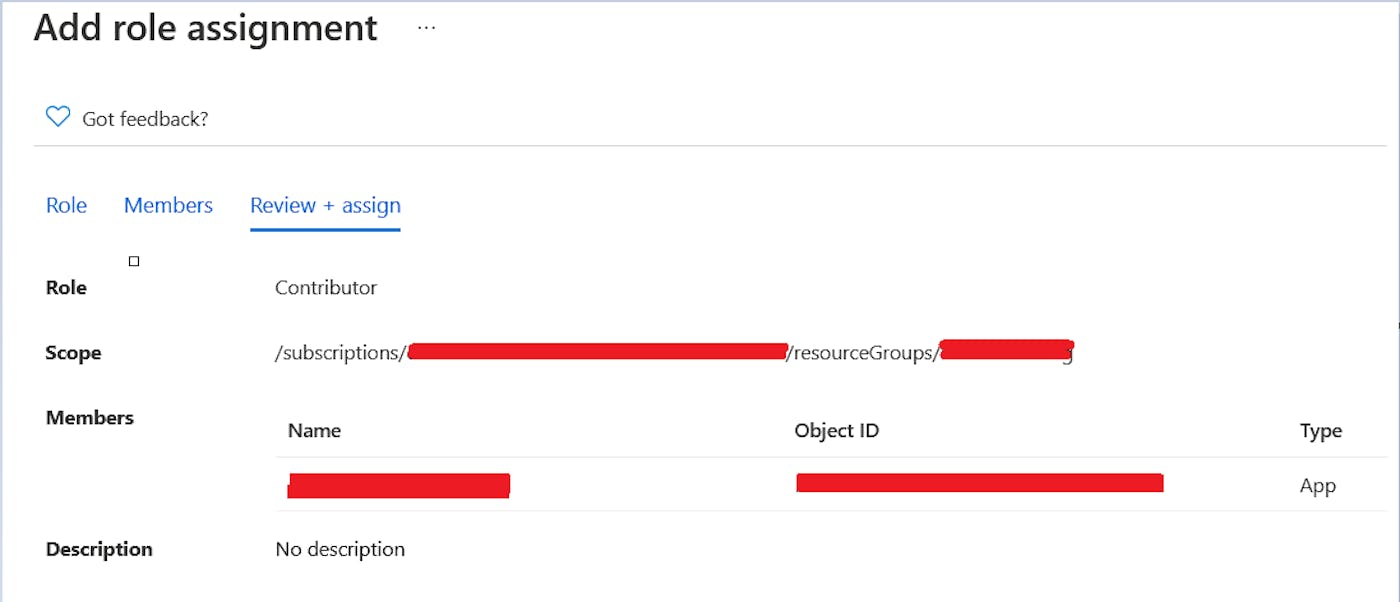
Now we need to register this App with our resource group which can be done by navigating to the resource group that we created and selecting Access Control (IAM) on the left sidebar. Clicking on the Add Role Assignment, we should assign the Contributor role to the App Registration that we created in the previous step (search for the name that you specified under the “User Facing Name” property in App Registration).
All that’s left to do is to create Data Factory and we can do that by going to the resource group that we created, clicking the Create button, and typing “Data Factory” in the search bar, and following the resource creation process.
Azure Data Factory
ADF is a single cloud service for data integration across all of your data sources, whether they’re on Azure, on-premises, or on another public cloud, such as Amazon Web Services (AWS). It provides a single set of tools and a common management experience for all of your data integration
One of the top-level concepts or components of Azure Data Factory is Pipelines which act as a grouping of separate Activities that together perform a task and can be run chained together in a sequential manner or independently in parallel. Azure Data Factory and Azure Synapse Analytics have three groupings of activities: data movement activities, data transformation activities, and control activities.
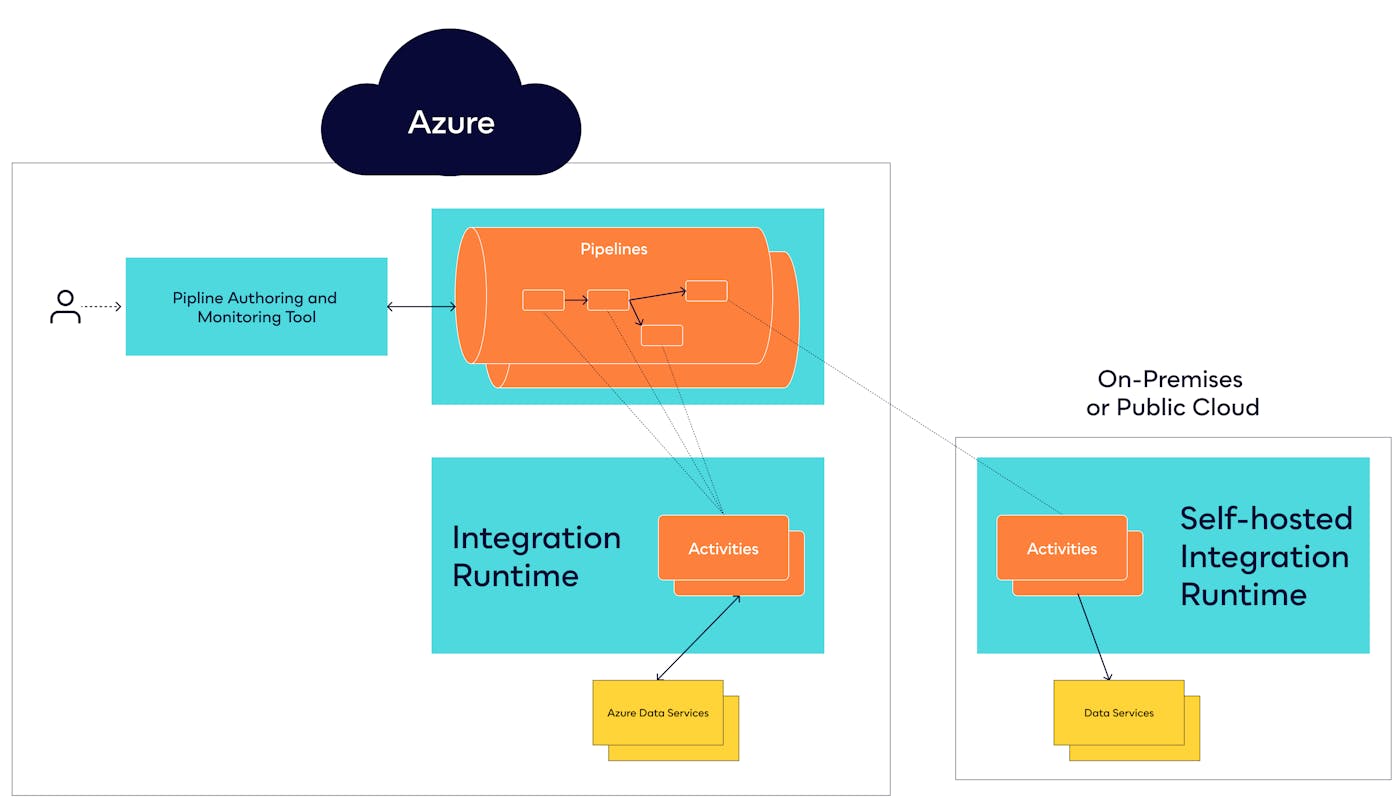
Pipeline creation process
For the needs of this tutorial, we will create a very simple pipeline called Blog_Pipeline that will receive parameter username which will be appended to the message “This file has been created by @username” and written to a file.
To accomplish this we will need to do the following:
Create Blob Storage resource
Create Template.txt file with sample word in it which will be used to create new .txt file (this is the “hacky” way of creating a file from a parameter or variable since Data Factory does not allow to directly use the dynamic content as a source for the Copy Data activity)
Create input and output Datasets
Add Copy Data activity to write to a file
Setting up Storage account resource
To accomplish this, navigate to the Resource Group that was previously created and add a new resource of type Storage Account. Select your resource group, pick the right region, name the storage account resource as you like, and leave the rest of the things as default. If you did everything correctly, you should have your storage account under the resource group.

Now we need to create a container and create the Template.txt file and upload it to the storage account. To create a container, on the left sidebar go to the Containers section and click on +Container to create the new container, name it as you like, and leave the defaults.
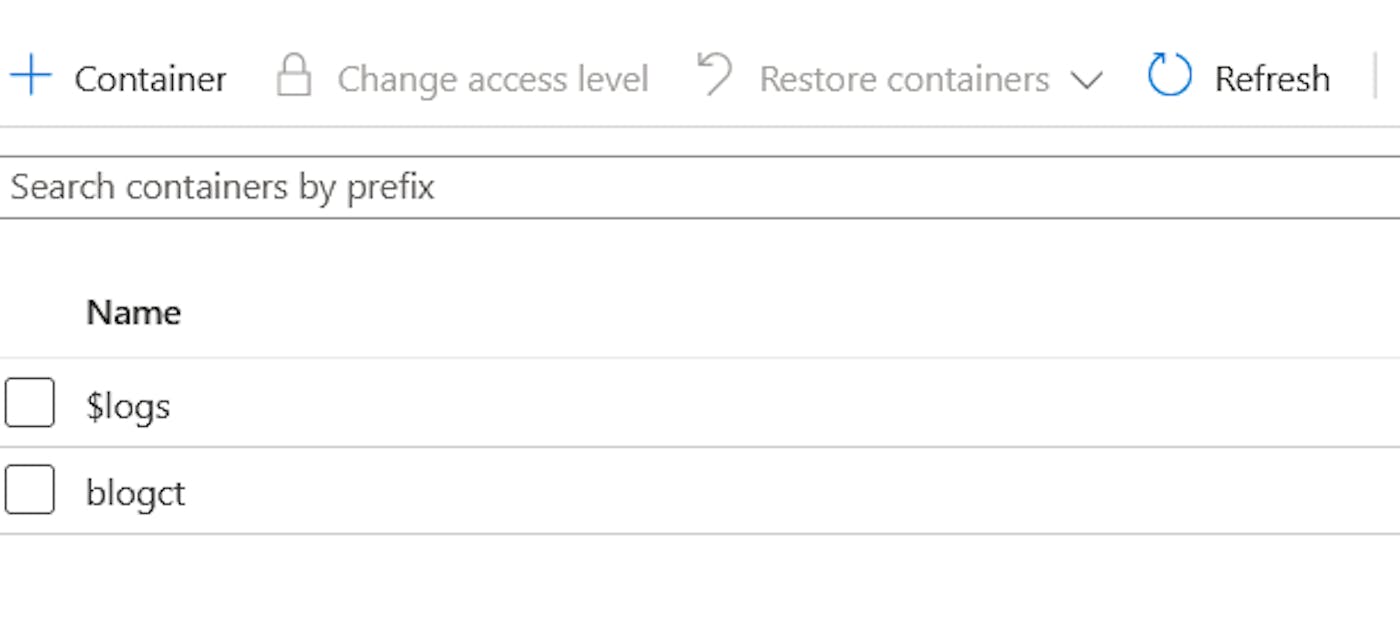
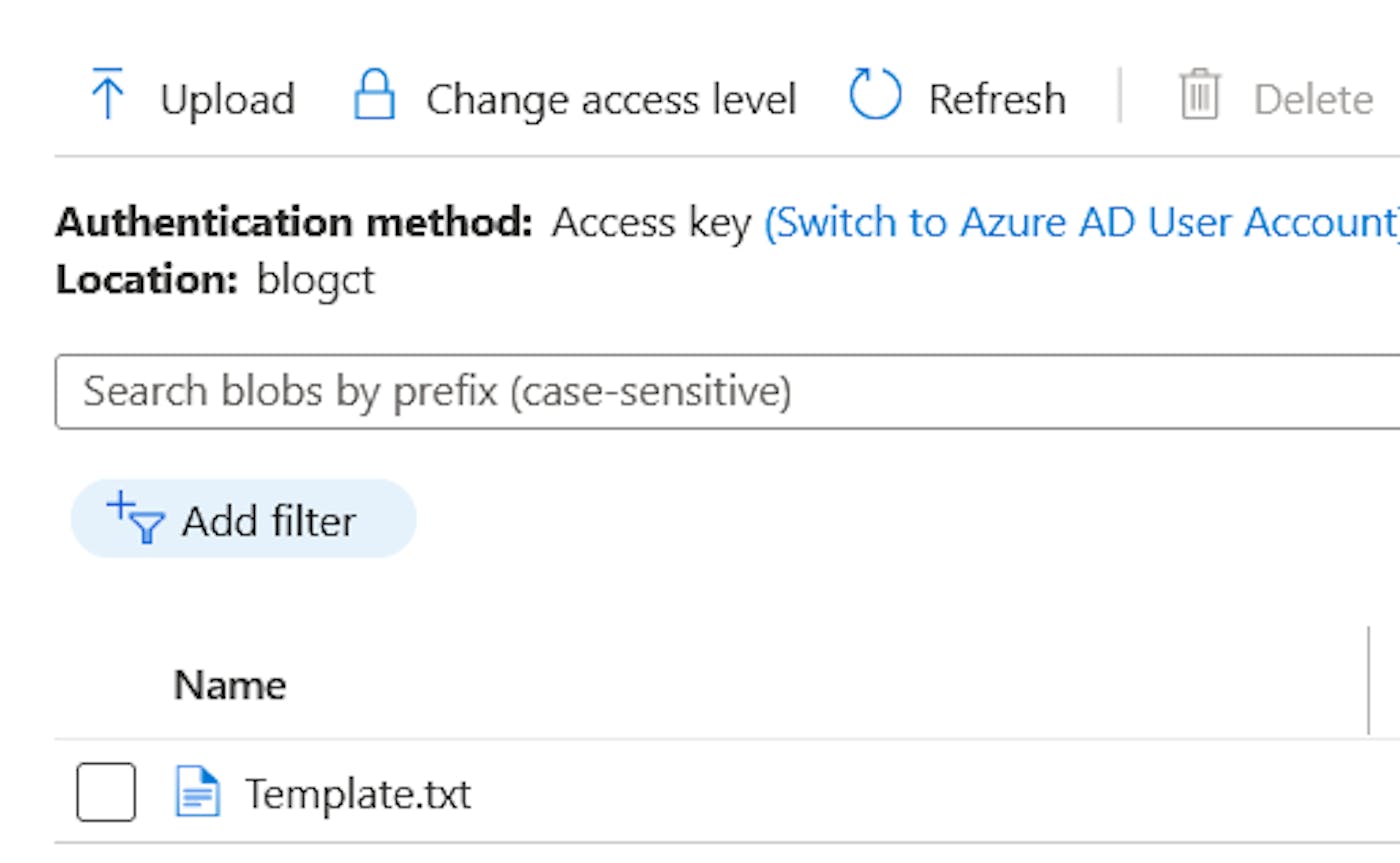
The content of the template file can be anything, you can write “test” or “column”. To upload a file, go back to the container that you have just created, click on Upload and follow the process. Upon completing the upload process, you should have something as shown in the picture below.
Adding new Datasets and Pipeline
We will create the pipeline through the GUI so head over to the adf.azure.com, log into your account and select the Data Factory from the resource group that you created, and click on Author on the left sidebar.
We will first create 2 datasets named CSV_Template, CSV_Output. In the process of creating datasets, we will create a linked service to our Storage account which is demonstrated in the gif below.
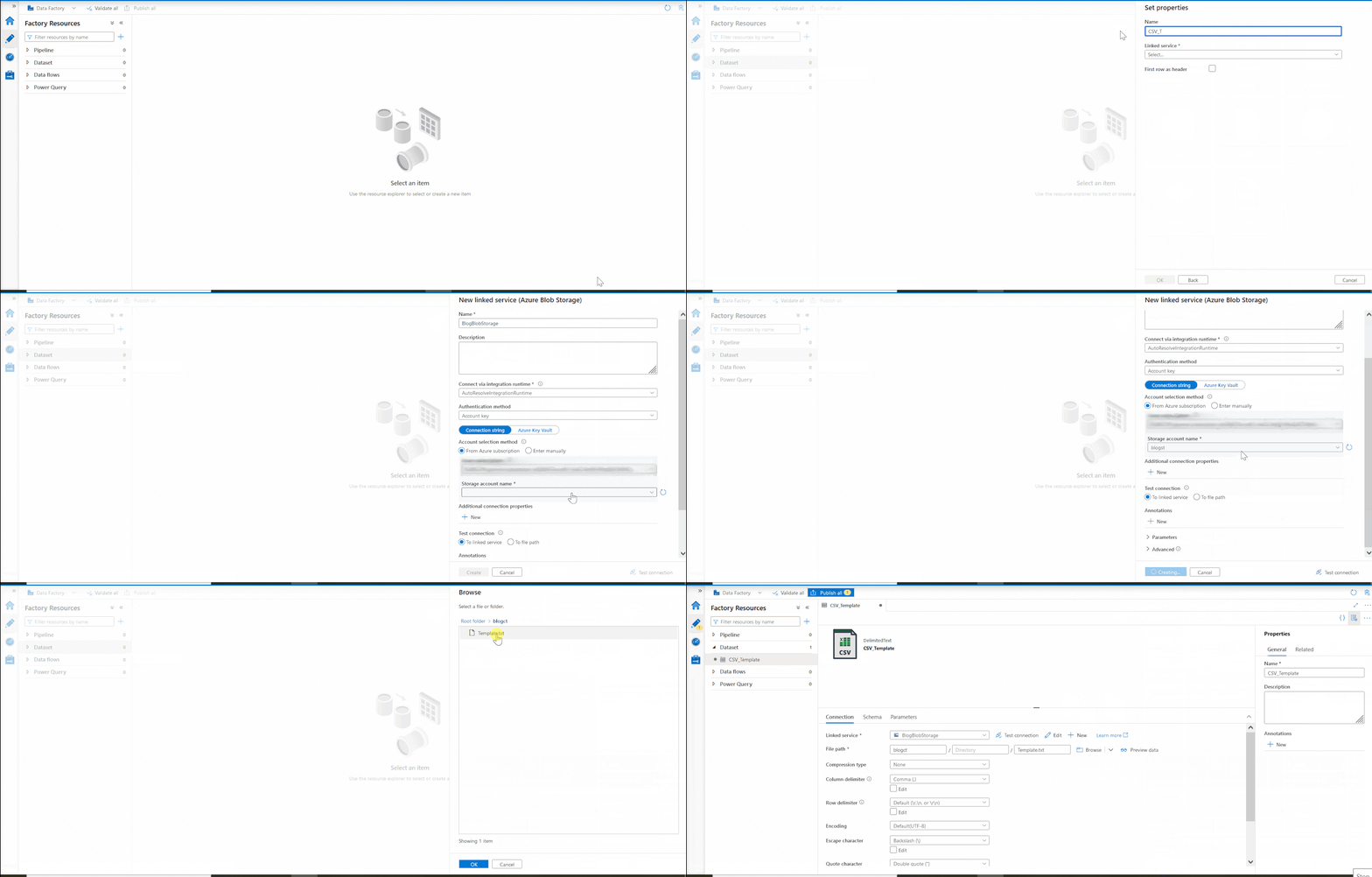
We will do the same thing for the CSV_Output dataset except that we don’t have to create the linked service again and there is no output file yet so we will leave it out in the creation menu, however, we will specify the name in the Connection section once it’s created.

Our pipeline logic will consist of two activities:
Set Variable Activity - we will use this to set the text that will be written to a file
Copy Data Activity - will be used to actually create the file
To create the new pipeline, right-click on the pipelines and add a new pipeline with the parameter username. In the Variables section add a new variable called message.
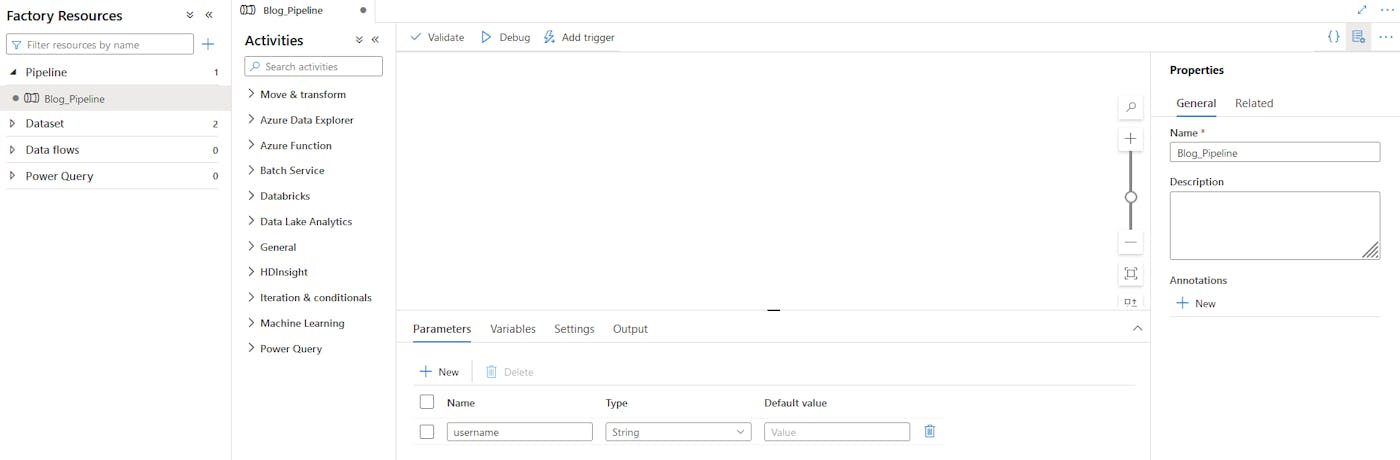
Process of creating the Set Variable activity is demonstrated in the gif below.
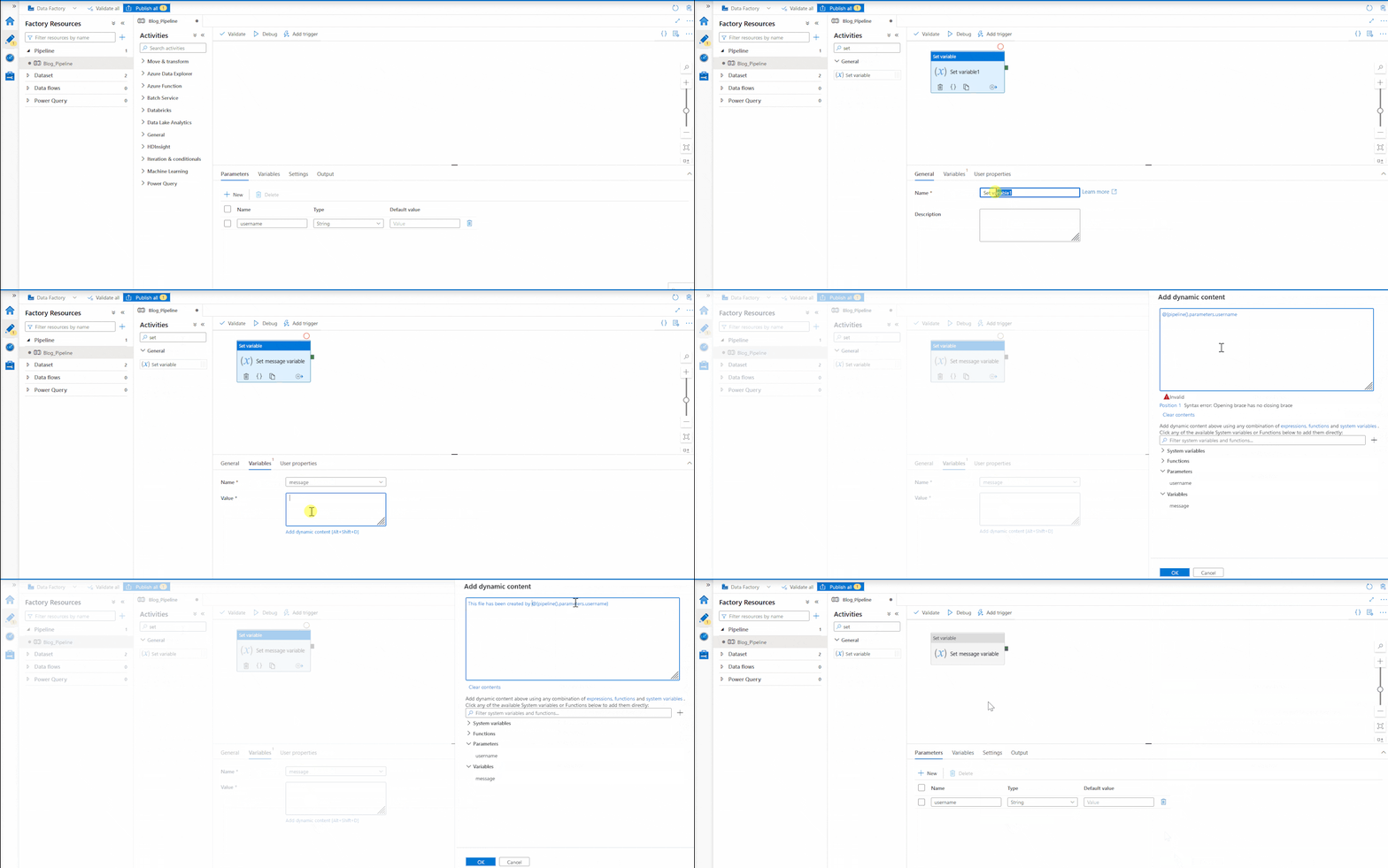
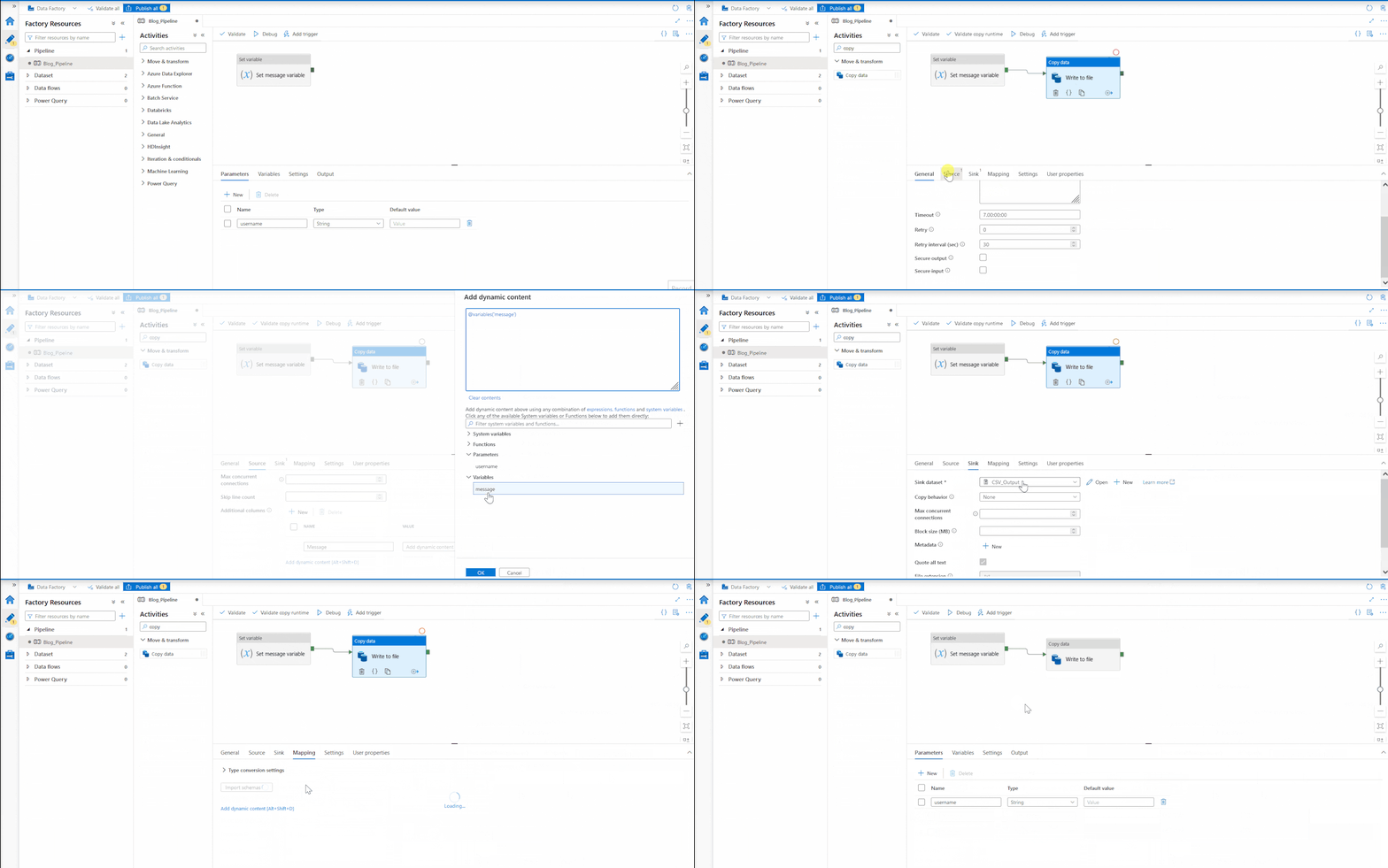
Now we need to chain the output of this activity to the new activity. For the Copy Data activity, we will need to use the datasets that we have previously created and set up the mapping part.
To test the pipeline, we can run it in Debug mode. When you click on the Debug you will be prompted to specify the username, you can enter anything as this is just for testing purposes, later on, we will pass this parameter through the C# code. After clicking on the Ok button and the pipeline finishes successfully, head over to the storage account container and check if the file is present.
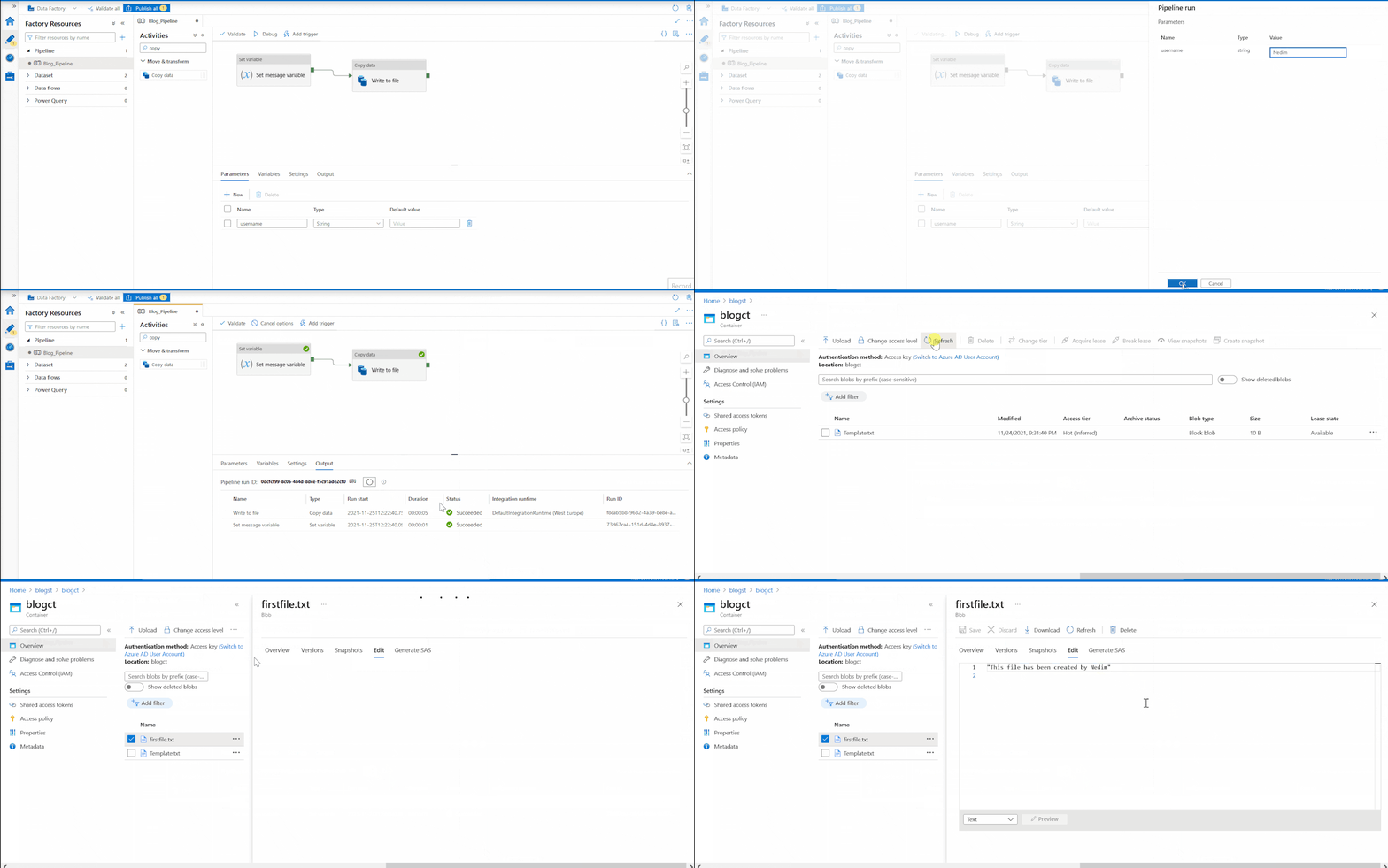
The pipeline logic itself will be different for everyone depending on the output that should be achieved through the ETL process. Creating pipelines can vary from being very simple data movement to very complex data transformations and it is not the main focus of this tutorial. So without delving into too many details, we created a very basic ADF Pipeline to be used in this tutorial. Creating the pipeline can be done both by GUI, through Azure Portal (as of ADF v2) as shown in the gifs, or programmatically through client libraries written in several languages. The rest of the tutorial focuses on triggering and monitoring the pipelines through C# code. For more information check out Use Portal to create Pipelines, Pipelines and Activities.
After following all of the steps above (including the Azure Subscription and setup section), you should have the 7 important pieces of information that you will need in order to use Data Factory from the C# client application:
ResourceGroup - the name of the Resource Group
DataFactoryName - the name of the Data Factory resource
TenantId and ApplicationId - you can find these under the App Registration that you created in Azure AD
AuthenticationKey - this is the Client Secret value that we created
SubscriptionId - can be found under the Overview tab in Resource Group that you created
Pipeline Name - this is the name of the pipeline that you created in Data Factory and it will be contained in the HTTP request to our API.
.NET Backend
For our backend, we will create a very simple REST API.
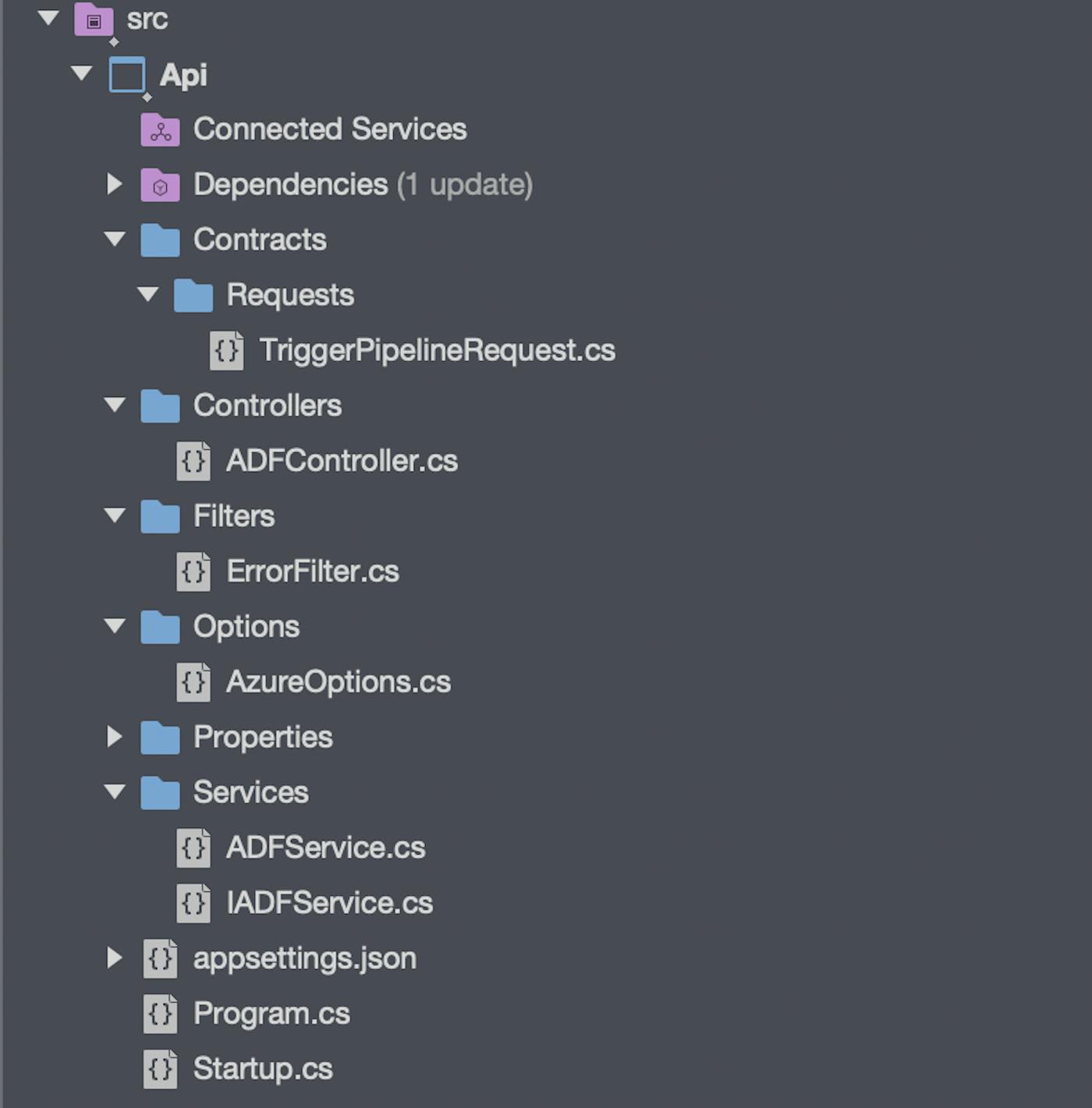
Initial Configuration
We will begin by configuring the swagger documentation so we can showcase how the application works and also add the controllers that will handle the HTTP requests. We will also set API routes to be lowercase but this is only optional.
using Api.Options;
using Api.Services;
using Microsoft.AspNetCore.Builder;
using Microsoft.AspNetCore.Hosting;
using Microsoft.Azure.Management.DataFactory;
using Microsoft.Extensions.Configuration;
using Microsoft.Extensions.DependencyInjection;
using Microsoft.Extensions.Hosting;
using Microsoft.IdentityModel.Clients.ActiveDirectory;
using Microsoft.OpenApi.Models;
using Microsoft.Rest;

namespace Api
{
    public class Startup
    {
        public Startup(IConfiguration configuration)
        {
            Configuration = configuration;
        }

        public IConfiguration Configuration { get; }

        public void ConfigureServices(IServiceCollection services)
        {
            services.AddRouting(options => {
                options.LowercaseUrls = true;
            });

            services.AddSwaggerGen(c =>
            {
                c.SwaggerDoc("v1", new OpenApiInfo { Title = "ADF", Version = "v1" });
            });

            services.AddControllers();
        }

        public void Configure(IApplicationBuilder app, IWebHostEnvironment env)
        {
            if (env.IsDevelopment())
            {
                app.UseDeveloperExceptionPage();

                app.UseSwagger();
                app.UseSwaggerUI(c => c.SwaggerEndpoint("/swagger/v1/swagger.json", "ADF v1"));
            }

            app.UseHttpsRedirection();

            app.UseRouting();

            app.UseAuthorization();

            app.UseEndpoints(endpoints =>
            {
                endpoints.MapControllers();
            });
        }
    }
}
using Api.Options;
using Api.Services;
using Microsoft.AspNetCore.Builder;
using Microsoft.AspNetCore.Hosting;
using Microsoft.Azure.Management.DataFactory;
using Microsoft.Extensions.Configuration;
using Microsoft.Extensions.DependencyInjection;
using Microsoft.Extensions.Hosting;
using Microsoft.IdentityModel.Clients.ActiveDirectory;
using Microsoft.OpenApi.Models;
using Microsoft.Rest;
namespace Api
{
public class Startup
{
public Startup(IConfiguration configuration)
{
Configuration = configuration;
}
public IConfiguration Configuration { get; }
public void ConfigureServices(IServiceCollection services)
{
services.AddRouting(options => {
options.LowercaseUrls = true;
});
services.AddSwaggerGen(c =>
{
c.SwaggerDoc("v1", new OpenApiInfo { Title = "ADF", Version = "v1" });
});
services.AddControllers();
}
public void Configure(IApplicationBuilder app, IWebHostEnvironment env)
{
if (env.IsDevelopment())
{
app.UseDeveloperExceptionPage();
app.UseSwagger();
app.UseSwaggerUI(c => c.SwaggerEndpoint("/swagger/v1/swagger.json", "ADF v1"));
}
app.UseHttpsRedirection();
app.UseRouting();
app.UseAuthorization();
app.UseEndpoints(endpoints =>
{
endpoints.MapControllers();
});
}
}
}using Api.Options;
using Api.Services;
using Microsoft.AspNetCore.Builder;
using Microsoft.AspNetCore.Hosting;
using Microsoft.Azure.Management.DataFactory;
using Microsoft.Extensions.Configuration;
using Microsoft.Extensions.DependencyInjection;
using Microsoft.Extensions.Hosting;
using Microsoft.IdentityModel.Clients.ActiveDirectory;
using Microsoft.OpenApi.Models;
using Microsoft.Rest;
namespace Api
{
public class Startup
{
public Startup(IConfiguration configuration)
{
Configuration = configuration;
}
public IConfiguration Configuration { get; }
public void ConfigureServices(IServiceCollection services)
{
services.AddRouting(options => {
options.LowercaseUrls = true;
});
services.AddSwaggerGen(c =>
{
c.SwaggerDoc("v1", new OpenApiInfo { Title = "ADF", Version = "v1" });
});
services.AddControllers();
}
public void Configure(IApplicationBuilder app, IWebHostEnvironment env)
{
if (env.IsDevelopment())
{
app.UseDeveloperExceptionPage();
app.UseSwagger();
app.UseSwaggerUI(c => c.SwaggerEndpoint("/swagger/v1/swagger.json", "ADF v1"));
}
app.UseHttpsRedirection();
app.UseRouting();
app.UseAuthorization();
app.UseEndpoints(endpoints =>
{
endpoints.MapControllers();
});
}
}
}
Next, in the appsettings.json, appsettings.Develop.json, or any other appsettings. <Environment>.json we will add a section named “Azure“ and add all the key-value pairs needed to access the Azure Data Factory so we can actually trigger and monitor our pipelines.
{
  "Logging": {
    "LogLevel": {
      "Default": "Information",
      "Microsoft": "Warning",
      "Microsoft.Hosting.Lifetime": "Information"
    }
  },
  "AllowedHosts": "*",
  "Azure": {
    "ResourceGroup": "<ResourceGroup>",
    "DataFactoryName": "<DataFactoryName>",
    "TenantId": "<TenantId>",
    "ApplicationId": "<ApplicationId>",
    "AuthenticationKey": "<AuthenticationKey>",
    "SubscriptionId": "<SubscriptionId>",
    "ActiveDirectoryAuthority": "https://login.microsoftonline.com/",
    "ResourceManagerUrl": "https://management.azure.com/"
  }
}
{
"Logging": {
"LogLevel": {
"Default": "Information",
"Microsoft": "Warning",
"Microsoft.Hosting.Lifetime": "Information"
}
},
"AllowedHosts": "*",
"Azure": {
"ResourceGroup": "<ResourceGroup>",
"DataFactoryName": "<DataFactoryName>",
"TenantId": "<TenantId>",
"ApplicationId": "<ApplicationId>",
"AuthenticationKey": "<AuthenticationKey>",
"SubscriptionId": "<SubscriptionId>",
"ActiveDirectoryAuthority": "https://login.microsoftonline.com/",
"ResourceManagerUrl": "https://management.azure.com/"
}
}{
"Logging": {
"LogLevel": {
"Default": "Information",
"Microsoft": "Warning",
"Microsoft.Hosting.Lifetime": "Information"
}
},
"AllowedHosts": "*",
"Azure": {
"ResourceGroup": "<ResourceGroup>",
"DataFactoryName": "<DataFactoryName>",
"TenantId": "<TenantId>",
"ApplicationId": "<ApplicationId>",
"AuthenticationKey": "<AuthenticationKey>",
"SubscriptionId": "<SubscriptionId>",
"ActiveDirectoryAuthority": "https://login.microsoftonline.com/",
"ResourceManagerUrl": "https://management.azure.com/"
}
}
Now we will create an AzureOptions.csclass that will mirror the keys in the appsettings.json file so that we can map the values from the configuration file to our class.
Note the property SectionName with the value “Azure” that represents the section in the .json configuration file.
namespace Api.Options
{
    public class AzureOptions
    {
        public const string SectionName = "Azure";

        public string ResourceGroup { get; set; }
        public string DataFactoryName { get; set; }
        public string TenantId { get; set; }
        public string ApplicationId { get; set; }
        public string AuthenticationKey { get; set; }
        public string SubscriptionId { get; set; }
        public string ActiveDirectoryAuthority { get; set; }
        public string ResourceManagerUrl { get; set; }
    }
}
namespace Api.Options
{
public class AzureOptions
{
public const string SectionName = "Azure";
public string ResourceGroup { get; set; }
public string DataFactoryName { get; set; }
public string TenantId { get; set; }
public string ApplicationId { get; set; }
public string AuthenticationKey { get; set; }
public string SubscriptionId { get; set; }
public string ActiveDirectoryAuthority { get; set; }
public string ResourceManagerUrl { get; set; }
}
}namespace Api.Options
{
public class AzureOptions
{
public const string SectionName = "Azure";
public string ResourceGroup { get; set; }
public string DataFactoryName { get; set; }
public string TenantId { get; set; }
public string ApplicationId { get; set; }
public string AuthenticationKey { get; set; }
public string SubscriptionId { get; set; }
public string ActiveDirectoryAuthority { get; set; }
public string ResourceManagerUrl { get; set; }
}
}
After setting up the configuration we will go back to the Startup.cs class to create an Azure DataFactoryClient that we will use for the actual functionalities of the application.
First, in the ConfigureServices method, we will use the IConfiguration and the SectionName property from the AzureOptions class to get the Azure configuration section from the configuration file. Next, we will register the configuration in the dependency injection (DI) container because we will need them later. Then we are going to cast azureConfiguration into a variable of type AzureOptions.
And now for the actual Data Factory client, we will first create an authentication context using the Azure Active Directory Authority and TenantId. Then, we are going to create the ClientCredentials using ApplicationId and AuthenticationKey. Using the AuthenticationContext, the Resource Manager URL, and the ClientCredentials, we are going to authenticate with the Azure Active Directory and create the ServiceClientCredentials using the AccessToken we got from the authentication response. And finally, using the credentials and the SubscriptionId we are going to create the DataFactoryManagementClient and register it in the DI container.
var azureConfiguration = Configuration
    .GetSection(AzureOptions.SectionName);

services.Configure<AzureOptions>(azureConfiguration);
var azureOptions = azureConfiguration.Get<AzureOptions>();

var context = new AuthenticationContext($"{azureOptions.ActiveDirectoryAuthority}/{azureOptions.TenantId}");
var clientCredentials = new ClientCredential(azureOptions.ApplicationId, azureOptions.AuthenticationKey);
var authResult = context.AcquireTokenAsync(azureOptions.ResourceManagerUrl, clientCredentials).Result;
ServiceClientCredentials credentials = new TokenCredentials(authResult.AccessToken);

services.AddTransient(options =>
{
    return new DataFactoryManagementClient(credentials)
    {
        SubscriptionId = azureOptions.SubscriptionId
    };
});
var azureConfiguration = Configuration
.GetSection(AzureOptions.SectionName);
services.Configure<AzureOptions>(azureConfiguration);
var azureOptions = azureConfiguration.Get<AzureOptions>();
var context = new AuthenticationContext($"{azureOptions.ActiveDirectoryAuthority}/{azureOptions.TenantId}");
var clientCredentials = new ClientCredential(azureOptions.ApplicationId, azureOptions.AuthenticationKey);
var authResult = context.AcquireTokenAsync(azureOptions.ResourceManagerUrl, clientCredentials).Result;
ServiceClientCredentials credentials = new TokenCredentials(authResult.AccessToken);
services.AddTransient(options =>
{
return new DataFactoryManagementClient(credentials)
{
SubscriptionId = azureOptions.SubscriptionId
};
});var azureConfiguration = Configuration
.GetSection(AzureOptions.SectionName);
services.Configure<AzureOptions>(azureConfiguration);
var azureOptions = azureConfiguration.Get<AzureOptions>();
var context = new AuthenticationContext($"{azureOptions.ActiveDirectoryAuthority}/{azureOptions.TenantId}");
var clientCredentials = new ClientCredential(azureOptions.ApplicationId, azureOptions.AuthenticationKey);
var authResult = context.AcquireTokenAsync(azureOptions.ResourceManagerUrl, clientCredentials).Result;
ServiceClientCredentials credentials = new TokenCredentials(authResult.AccessToken);
services.AddTransient(options =>
{
return new DataFactoryManagementClient(credentials)
{
SubscriptionId = azureOptions.SubscriptionId
};
});
The Azure Data Factory Service
And now for the pipeline trigger and monitor implementations, we will first create an IADFServiceinterface with two methods:
RunPipelineAsync - which will be used to trigger the pipeline taking the pipeline name that we want to trigger, parameters that the pipeline requires to run, and cancellation token as its parameters
GetPipelineStatusAsync - will be used to monitor the pipeline taking the pipeline runId and cancellation token as its parameters.
using System.Collections.Generic;
using System.Threading;
using System.Threading.Tasks;
using Microsoft.Azure.Management.DataFactory.Models;

namespace Api.Services
{
    public interface IADFService
    {
        Task<CreateRunResponse> RunPipelineAsync(string pipelineName, IDictionary<string, object> parameters, CancellationToken cancellationToken);
        Task<PipelineRun> GetPipelineStatusAsync(string runId, CancellationToken cancellationToken);
    }
}
using System.Collections.Generic;
using System.Threading;
using System.Threading.Tasks;
using Microsoft.Azure.Management.DataFactory.Models;
namespace Api.Services
{
public interface IADFService
{
Task<CreateRunResponse> RunPipelineAsync(string pipelineName, IDictionary<string, object> parameters, CancellationToken cancellationToken);
Task<PipelineRun> GetPipelineStatusAsync(string runId, CancellationToken cancellationToken);
}
}using System.Collections.Generic;
using System.Threading;
using System.Threading.Tasks;
using Microsoft.Azure.Management.DataFactory.Models;
namespace Api.Services
{
public interface IADFService
{
Task<CreateRunResponse> RunPipelineAsync(string pipelineName, IDictionary<string, object> parameters, CancellationToken cancellationToken);
Task<PipelineRun> GetPipelineStatusAsync(string runId, CancellationToken cancellationToken);
}
}
In the ADFService.cs we will implement the IADFService interface. The implementation class will receive its dependencies on AzureOptions (using the Options pattern) and the DataFactoryManagementClient through the constructor dependency injection.
In the RunPipelineAsync method, using the DataFactoryManagementClient and its property Pipeline we will call CreateRunAsync and pass the Resource Group, Data Factory name, Pipeline name, parameters, and the cancellation token which will trigger the pipeline and return an instance of CreateReturnResponse that contains the pipeline runId that we will use for monitoring the pipeline run.
In the GetPipelineStatus method, using the DataFactoryManagementClient and its property PipelineRuns we will call the GetAsync method and pass the Resource Group, Data Factory name, the pipeline run id, and the cancellation token, which will return an instance of PipelineRun.
using System.Collections.Generic;
using System.Threading;
using System.Threading.Tasks;
using Api.Options;
using Microsoft.Azure.Management.DataFactory;
using Microsoft.Azure.Management.DataFactory.Models;
using Microsoft.Extensions.Options;

namespace Api.Services
{
    public class ADFService : IADFService
    {
        private readonly AzureOptions _azureOptions;
        private readonly DataFactoryManagementClient _dataFactoryManagementClient;

        public ADFService(IOptions<AzureOptions> azureOptions, DataFactoryManagementClient dataFactoryManagementClient)
        {
            _azureOptions = azureOptions.Value;
            _dataFactoryManagementClient = dataFactoryManagementClient;
        }

        public async Task<PipelineRun> GetPipelineStatusAsync(string runId, CancellationToken cancellationToken = default)
        {
            var pipelineRun = await _dataFactoryManagementClient.PipelineRuns.GetAsync(
                _azureOptions.ResourceGroup,
                _azureOptions.DataFactoryName,
                runId,
                cancellationToken);

            return pipelineRun;
        }

        public async Task<CreateRunResponse> RunPipelineAsync(string pipelineName,
            IDictionary<string, object> parameters,
            CancellationToken cancellationToken = default
        )
        {
            var runResponse = await _dataFactoryManagementClient.Pipelines.CreateRunAsync(
                _azureOptions.ResourceGroup,
                _azureOptions.DataFactoryName,
                pipelineName,
                parameters: parameters,
                cancellationToken: cancellationToken);

            return runResponse;
        }
    }
}
using System.Collections.Generic;
using System.Threading;
using System.Threading.Tasks;
using Api.Options;
using Microsoft.Azure.Management.DataFactory;
using Microsoft.Azure.Management.DataFactory.Models;
using Microsoft.Extensions.Options;
namespace Api.Services
{
public class ADFService : IADFService
{
private readonly AzureOptions _azureOptions;
private readonly DataFactoryManagementClient _dataFactoryManagementClient;
public ADFService(IOptions<AzureOptions> azureOptions, DataFactoryManagementClient dataFactoryManagementClient)
{
_azureOptions = azureOptions.Value;
_dataFactoryManagementClient = dataFactoryManagementClient;
}
public async Task<PipelineRun> GetPipelineStatusAsync(string runId, CancellationToken cancellationToken = default)
{
var pipelineRun = await _dataFactoryManagementClient.PipelineRuns.GetAsync(
_azureOptions.ResourceGroup,
_azureOptions.DataFactoryName,
runId,
cancellationToken);
return pipelineRun;
}
public async Task<CreateRunResponse> RunPipelineAsync(string pipelineName,
IDictionary<string, object> parameters,
CancellationToken cancellationToken = default
)
{
var runResponse = await _dataFactoryManagementClient.Pipelines.CreateRunAsync(
_azureOptions.ResourceGroup,
_azureOptions.DataFactoryName,
pipelineName,
parameters: parameters,
cancellationToken: cancellationToken);
return runResponse;
}
}
}using System.Collections.Generic;
using System.Threading;
using System.Threading.Tasks;
using Api.Options;
using Microsoft.Azure.Management.DataFactory;
using Microsoft.Azure.Management.DataFactory.Models;
using Microsoft.Extensions.Options;
namespace Api.Services
{
public class ADFService : IADFService
{
private readonly AzureOptions _azureOptions;
private readonly DataFactoryManagementClient _dataFactoryManagementClient;
public ADFService(IOptions<AzureOptions> azureOptions, DataFactoryManagementClient dataFactoryManagementClient)
{
_azureOptions = azureOptions.Value;
_dataFactoryManagementClient = dataFactoryManagementClient;
}
public async Task<PipelineRun> GetPipelineStatusAsync(string runId, CancellationToken cancellationToken = default)
{
var pipelineRun = await _dataFactoryManagementClient.PipelineRuns.GetAsync(
_azureOptions.ResourceGroup,
_azureOptions.DataFactoryName,
runId,
cancellationToken);
return pipelineRun;
}
public async Task<CreateRunResponse> RunPipelineAsync(string pipelineName,
IDictionary<string, object> parameters,
CancellationToken cancellationToken = default
)
{
var runResponse = await _dataFactoryManagementClient.Pipelines.CreateRunAsync(
_azureOptions.ResourceGroup,
_azureOptions.DataFactoryName,
pipelineName,
parameters: parameters,
cancellationToken: cancellationToken);
return runResponse;
}
}
}
And lastly, for this section, we will register the ADFService into the DI container so we can use it in the controllers.
services.AddTransient<IADFService, ADFService>();
services.AddTransient<IADFService, ADFService>();
services.AddTransient<IADFService, ADFService>();
In ADFController we are going to create two methods that are going to use the IADFService interface and call our methods for triggering and monitoring the pipeline and return the appropriate HTTP response.
using System;
using System.Threading;
using System.Threading.Tasks;
using Api.Contracts.Requests;
using Api.Services;
using Microsoft.AspNetCore.Mvc;

namespace Api.Controllers
{
    [Route("api/[controller]")]
    [ApiController]
    public class ADFController : ControllerBase
    {
        private readonly IADFService _adfService;

        public ADFController(IADFService adfService)
        {
            _adfService = adfService;
        }

        [HttpPost("pipeline")]
        public async Task<IActionResult> TriggerPipelineAsync(TriggerPipelineRequest request, CancellationToken cancellationToken = default)
        {
            var response = await _adfService.RunPipelineAsync(request.PipelineName, request.Parameters, cancellationToken);

            if (response != null)
            {
                return CreatedAtAction(nameof(GetPipelineStatus), new { id = response.RunId }, response);
            }

            return NotFound();

        }

        [HttpGet("pipeline/{id}")]
        public async Task<IActionResult> GetPipelineStatus(Guid id, CancellationToken cancellationToken = default)
        {
            var response = await _adfService.GetPipelineStatusAsync(id.ToString(), cancellationToken);

            if (response != null)
            {
                return Ok(response);
            }

            return NotFound();
        }
    }
}
using System;
using System.Threading;
using System.Threading.Tasks;
using Api.Contracts.Requests;
using Api.Services;
using Microsoft.AspNetCore.Mvc;
namespace Api.Controllers
{
[Route("api/[controller]")]
[ApiController]
public class ADFController : ControllerBase
{
private readonly IADFService _adfService;
public ADFController(IADFService adfService)
{
_adfService = adfService;
}
[HttpPost("pipeline")]
public async Task<IActionResult> TriggerPipelineAsync(TriggerPipelineRequest request, CancellationToken cancellationToken = default)
{
var response = await _adfService.RunPipelineAsync(request.PipelineName, request.Parameters, cancellationToken);
if (response != null)
{
return CreatedAtAction(nameof(GetPipelineStatus), new { id = response.RunId }, response);
}
return NotFound();
}
[HttpGet("pipeline/{id}")]
public async Task<IActionResult> GetPipelineStatus(Guid id, CancellationToken cancellationToken = default)
{
var response = await _adfService.GetPipelineStatusAsync(id.ToString(), cancellationToken);
if (response != null)
{
return Ok(response);
}
return NotFound();
}
}
}using System;
using System.Threading;
using System.Threading.Tasks;
using Api.Contracts.Requests;
using Api.Services;
using Microsoft.AspNetCore.Mvc;
namespace Api.Controllers
{
[Route("api/[controller]")]
[ApiController]
public class ADFController : ControllerBase
{
private readonly IADFService _adfService;
public ADFController(IADFService adfService)
{
_adfService = adfService;
}
[HttpPost("pipeline")]
public async Task<IActionResult> TriggerPipelineAsync(TriggerPipelineRequest request, CancellationToken cancellationToken = default)
{
var response = await _adfService.RunPipelineAsync(request.PipelineName, request.Parameters, cancellationToken);
if (response != null)
{
return CreatedAtAction(nameof(GetPipelineStatus), new { id = response.RunId }, response);
}
return NotFound();
}
[HttpGet("pipeline/{id}")]
public async Task<IActionResult> GetPipelineStatus(Guid id, CancellationToken cancellationToken = default)
{
var response = await _adfService.GetPipelineStatusAsync(id.ToString(), cancellationToken);
if (response != null)
{
return Ok(response);
}
return NotFound();
}
}
}
The action request object TriggerPipelineRequest.cs
using System.Collections.Generic;

namespace Api.Contracts.Requests
{
    public class TriggerPipelineRequest
    {
        public string PipelineName { get; set; }
        public Dictionary<string, object> Parameters { get; set; }
    }
}
using System.Collections.Generic;
namespace Api.Contracts.Requests
{
public class TriggerPipelineRequest
{
public string PipelineName { get; set; }
public Dictionary<string, object> Parameters { get; set; }
}
}using System.Collections.Generic;
namespace Api.Contracts.Requests
{
public class TriggerPipelineRequest
{
public string PipelineName { get; set; }
public Dictionary<string, object> Parameters { get; set; }
}
}
Error Handling
One last thing that we are going to add to our API is error handling.
In the ADFService, the methods that we use to trigger and monitor the pipeline can actually throw an exception if we pass them invalid parameters (ex. trying to trigger a pipeline that doesn’t exist, passing in the wrong run id when trying to monitor the pipeline). We could add a try-catch block in the service and handle the errors there, but we are going to use a simpler way of adding a form of middleware, a filter.
using Microsoft.AspNetCore.Mvc;
using Microsoft.AspNetCore.Mvc.Filters;
using Microsoft.Rest.Azure;

namespace Api.Filters
{
    public class ErrorFilter : ExceptionFilterAttribute
    {
        public override void OnException(ExceptionContext context)
        {
            if (context.Exception is CloudException exception)
            {
                context.ModelState.AddModelError("Error", exception.Message);
                context.HttpContext.Response.StatusCode = (int)exception.Response.StatusCode;
            }

            context.Result = new JsonResult(context.ModelState);
        }
    }
}
using Microsoft.AspNetCore.Mvc;
using Microsoft.AspNetCore.Mvc.Filters;
using Microsoft.Rest.Azure;
namespace Api.Filters
{
public class ErrorFilter : ExceptionFilterAttribute
{
public override void OnException(ExceptionContext context)
{
if (context.Exception is CloudException exception)
{
context.ModelState.AddModelError("Error", exception.Message);
context.HttpContext.Response.StatusCode = (int)exception.Response.StatusCode;
}
context.Result = new JsonResult(context.ModelState);
}
}
}using Microsoft.AspNetCore.Mvc;
using Microsoft.AspNetCore.Mvc.Filters;
using Microsoft.Rest.Azure;
namespace Api.Filters
{
public class ErrorFilter : ExceptionFilterAttribute
{
public override void OnException(ExceptionContext context)
{
if (context.Exception is CloudException exception)
{
context.ModelState.AddModelError("Error", exception.Message);
context.HttpContext.Response.StatusCode = (int)exception.Response.StatusCode;
}
context.Result = new JsonResult(context.ModelState);
}
}
}
In order to create an exception filter, we need to inherit from the ExceptionFilterAttribute and override the OnException method to define our custom behaviors.
Both the methods we called are going to throw an exception of type CloudException. So we are going to use a neat feature of C# called Pattern Matching to check if the ExceptionContext contains a property Exception of type CloudException, and if it does, cast that exception into a new variable called an exception. The casting part is important mainly so we can access the property Response and get the StatusCode of the error.
And finally, in order to use the filter, we will go back to the Startup.cs and add it as part of our controller configuration.
services.AddControllers(i => i.Filters.Add<ErrorFilter>());
services.AddControllers(i => i.Filters.Add<ErrorFilter>());
services.AddControllers(i => i.Filters.Add<ErrorFilter>());
Showcase
For the showcase, we are going to use the Swagger client to first trigger a pipeline named “Blog_Pipeline“ which takes the username parameter.
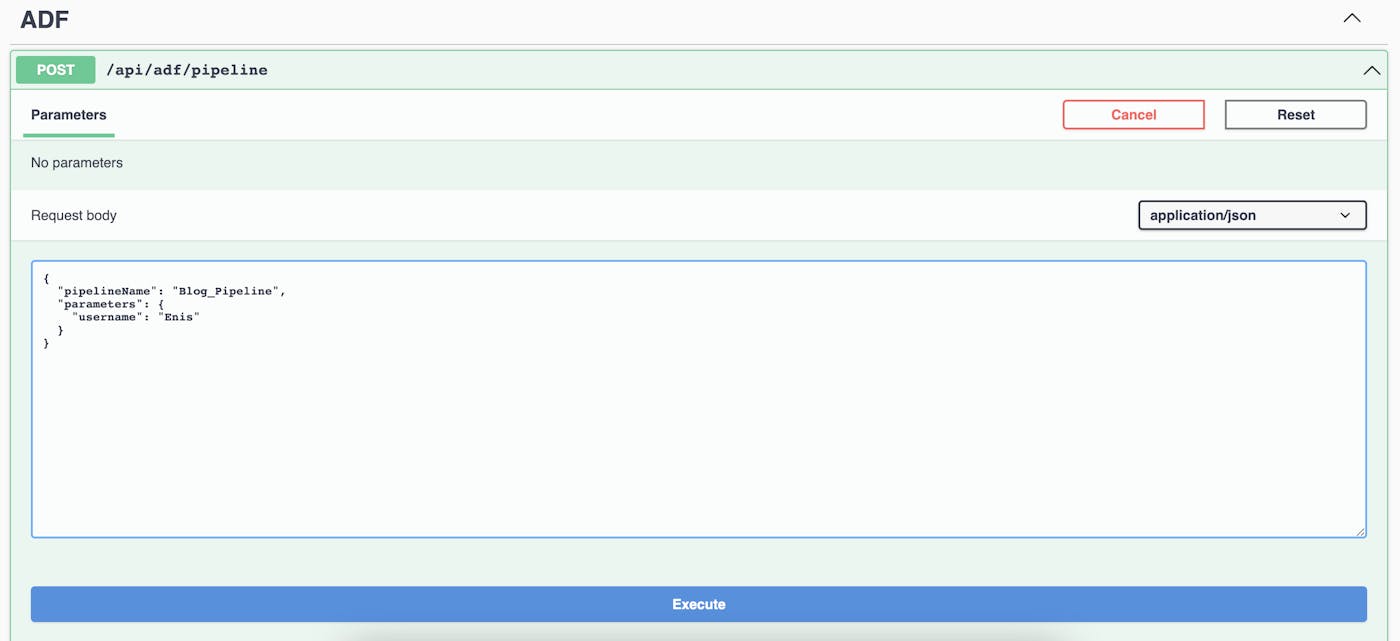
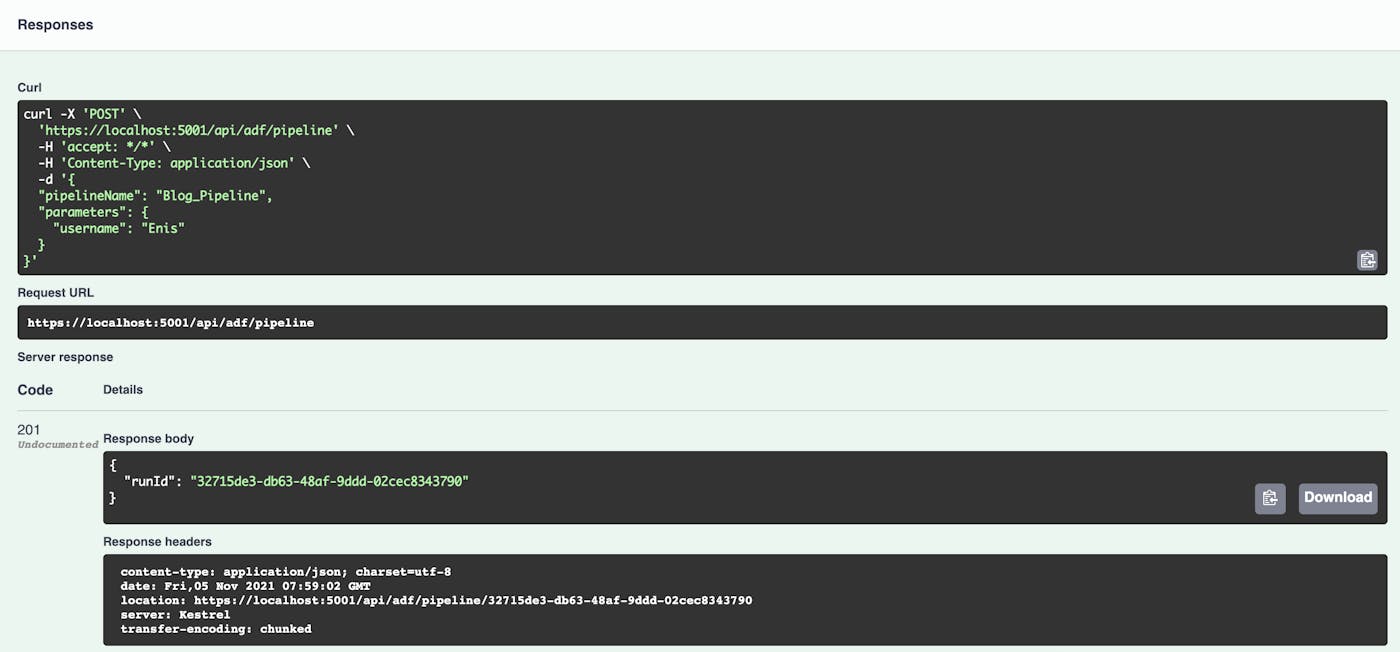
If the pipeline gets triggered successfully we will get the runId as a response. Now, we can use this Id in the GET action to monitor this pipeline.
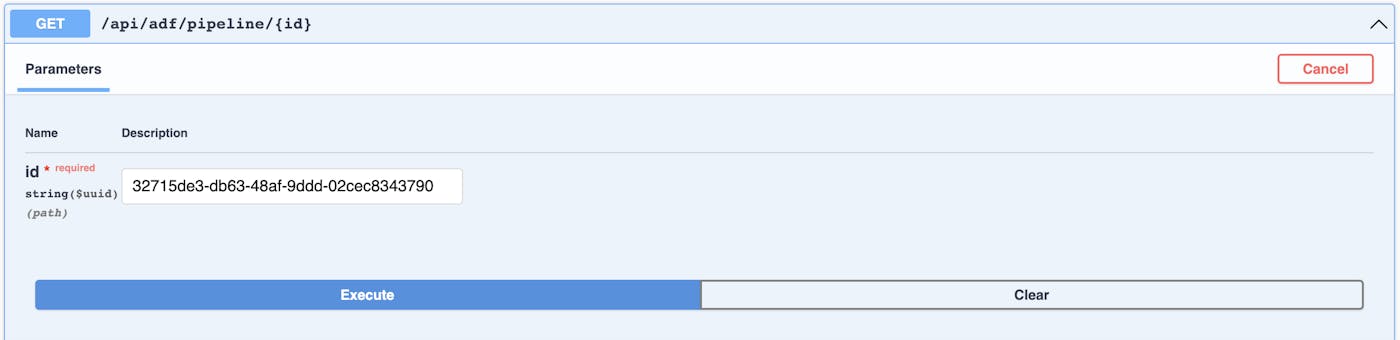
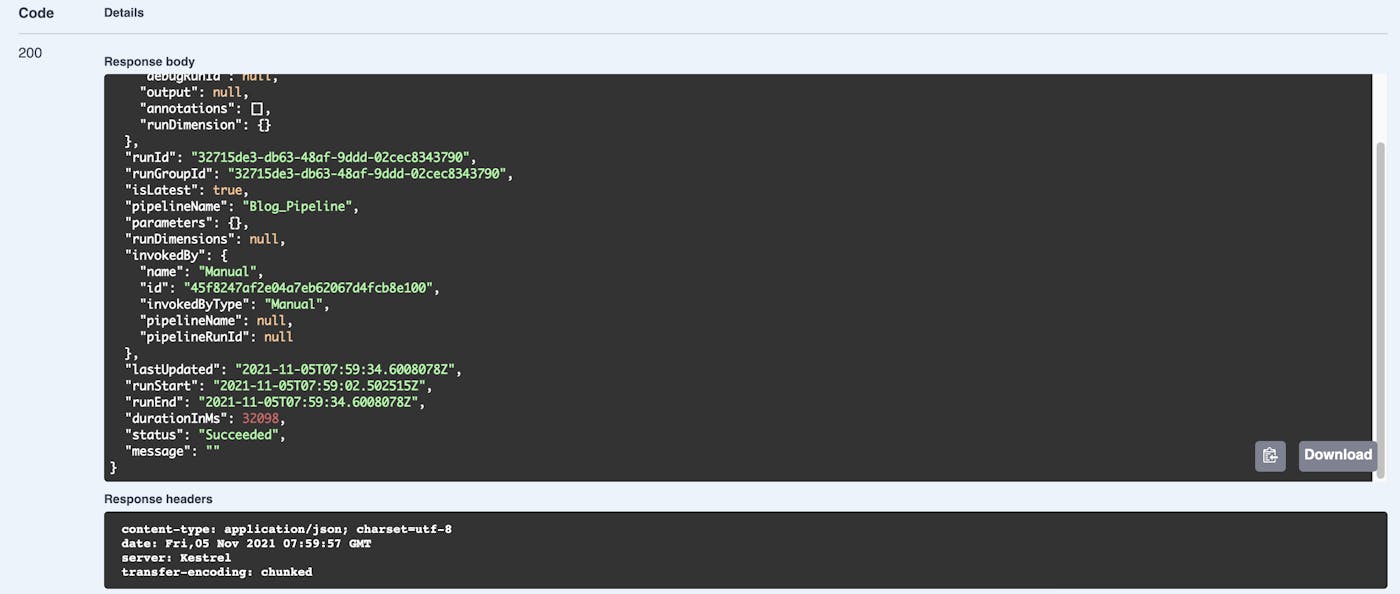
Below we can see the response we get by calling the “monitor“ endpoint.
{
  "additionalProperties": {
    "id": "/SUBSCRIPTIONS/{SubscriptionId}/RESOURCEGROUPS/{ResourceGroups}/PROVIDERS/MICROSOFT.DATAFACTORY/FACTORIES/{FactoryName}/pipelineruns/32715de3-db63-48af-9ddd-02cec8343790",
    "debugRunId": null,
    "output": null,
    "annotations": [],
    "runDimension": {}
  },
  "runId": "32715de3-db63-48af-9ddd-02cec8343790",
  "runGroupId": "32715de3-db63-48af-9ddd-02cec8343790",
  "isLatest": true,
  "pipelineName": "Blog_Pipeline",
  "parameters": {},
  "runDimensions": null,
  "invokedBy": {
    "name": "Manual",
    "id": "45f8247af2e04a7eb62067d4fcb8e100",
    "invokedByType": "Manual",
    "pipelineName": null,
    "pipelineRunId": null
  },
  "lastUpdated": "2021-11-05T07:59:34.6008078Z",
  "runStart": "2021-11-05T07:59:02.502515Z",
  "runEnd": "2021-11-05T07:59:34.6008078Z",
  "durationInMs": 32098,
  "status": "Succeeded",
  "message": ""
}
{
"additionalProperties": {
"id": "/SUBSCRIPTIONS/{SubscriptionId}/RESOURCEGROUPS/{ResourceGroups}/PROVIDERS/MICROSOFT.DATAFACTORY/FACTORIES/{FactoryName}/pipelineruns/32715de3-db63-48af-9ddd-02cec8343790",
"debugRunId": null,
"output": null,
"annotations": [],
"runDimension": {}
},
"runId": "32715de3-db63-48af-9ddd-02cec8343790",
"runGroupId": "32715de3-db63-48af-9ddd-02cec8343790",
"isLatest": true,
"pipelineName": "Blog_Pipeline",
"parameters": {},
"runDimensions": null,
"invokedBy": {
"name": "Manual",
"id": "45f8247af2e04a7eb62067d4fcb8e100",
"invokedByType": "Manual",
"pipelineName": null,
"pipelineRunId": null
},
"lastUpdated": "2021-11-05T07:59:34.6008078Z",
"runStart": "2021-11-05T07:59:02.502515Z",
"runEnd": "2021-11-05T07:59:34.6008078Z",
"durationInMs": 32098,
"status": "Succeeded",
"message": ""
}{
"additionalProperties": {
"id": "/SUBSCRIPTIONS/{SubscriptionId}/RESOURCEGROUPS/{ResourceGroups}/PROVIDERS/MICROSOFT.DATAFACTORY/FACTORIES/{FactoryName}/pipelineruns/32715de3-db63-48af-9ddd-02cec8343790",
"debugRunId": null,
"output": null,
"annotations": [],
"runDimension": {}
},
"runId": "32715de3-db63-48af-9ddd-02cec8343790",
"runGroupId": "32715de3-db63-48af-9ddd-02cec8343790",
"isLatest": true,
"pipelineName": "Blog_Pipeline",
"parameters": {},
"runDimensions": null,
"invokedBy": {
"name": "Manual",
"id": "45f8247af2e04a7eb62067d4fcb8e100",
"invokedByType": "Manual",
"pipelineName": null,
"pipelineRunId": null
},
"lastUpdated": "2021-11-05T07:59:34.6008078Z",
"runStart": "2021-11-05T07:59:02.502515Z",
"runEnd": "2021-11-05T07:59:34.6008078Z",
"durationInMs": 32098,
"status": "Succeeded",
"message": ""
}Conclusion
Creating and executing ETL processes has never been easier using Azure Data Factory with a wide range of transformational, movement, and control activities to choose from. Sometimes, for various other reasons like allowing users to execute ETL process through the UI, waiting for some local processing to be done, or for any other use-case that is not covered by Azure mechanisms for that matter, you can trigger these processes outside of Azure Portal, so in this tutorial, we have shown one of the possible ways to achieve that.
Source code of the demo application
" height="48.00000014038086px" id="xQ5vVHKqO" width="172.73399414062501px"/></svg>)




" height="48.00000014038086px" id="y_gzzqZQT" width="172.73500122070314px"/></svg>)
" height="59.04589570945726px" id="xfIRu88ZF" transform="translate(65.41 0)" width="59.8233px"/><path d="M 0.037 0 L 59.817 0.013 L 59.838 58.843 C 40.408 59.265 19.547 58.885 0 58.892 Z" fill="rgb(255, 255, 255)" height="59.04232000845508px" id="crREGYe3K" transform="translate(65.41 64.958)" width="59.838300000000004px"/><path d="M 0 0 L 59.452 0 L 59.471 58.949 L 0.002 58.974 Z" fill="rgb(255, 255, 255)" height="58.974479px" id="pciNNlsqV" transform="translate(0 0.013)" width="59.4711px"/><path d="M 0.013 0 L 59.449 0.009 L 59.474 58.868 L 0 58.887 Z" fill="rgb(255, 255, 255)" height="58.88719999999999px" id="MLxtpVEkA" transform="translate(0.002 64.961)" width="59.47441129px"/><path d="M 0 56 L 0 0 L 9.44 0 L 28.4 37.84 L 47.28 0 L 56.8 0 L 56.8 56 L 48.8 56 L 48.8 14 L 31.44 48.16 L 25.28 48.16 L 8 14.08 L 8 56 Z" fill="rgb(255, 255, 255)" height="55.99996px" id="z09I3buUx" transform="translate(163.088 7)" width="56.80000000000001px"/><path d="M 1.2 58 L 1.2 17.68 L 9.2 17.68 L 9.2 58 Z M 5.28 10.08 C 3.733 10.08 2.453 9.6 1.44 8.64 C 0.48 7.68 0 6.453 0 4.96 C 0 3.52 0.48 2.347 1.44 1.44 C 2.453 0.48 3.733 0 5.28 0 C 6.773 0 8.026 0.48 9.04 1.44 C 10.053 2.347 10.56 3.52 10.56 4.96 C 10.56 6.453 10.053 7.68 9.04 8.64 C 8.026 9.6 6.773 10.08 5.28 10.08 Z" fill="rgb(255, 255, 255)" height="57.99996025085449px" id="MW_dHL7DY" transform="translate(230.486 5)" width="10.560000000000002px"/><path d="M 20.16 42.24 C 16.266 42.24 12.8 41.36 9.76 39.6 C 6.72 37.787 4.32 35.307 2.56 32.16 C 0.853 29.013 0 25.36 0 21.2 C 0 16.987 0.853 13.307 2.56 10.16 C 4.32 6.96 6.72 4.48 9.76 2.72 C 12.8 0.907 16.266 0 20.16 0 C 25.066 0 29.173 1.28 32.48 3.84 C 35.786 6.4 37.893 9.867 38.8 14.24 L 30.48 14.24 C 29.946 11.893 28.72 10.08 26.8 8.8 C 24.933 7.52 22.693 6.88 20.08 6.88 C 17.946 6.88 15.973 7.44 14.16 8.56 C 12.346 9.627 10.88 11.227 9.76 13.36 C 8.693 15.44 8.16 18.027 8.16 21.12 C 8.16 23.413 8.48 25.467 9.12 27.28 C 9.76 29.04 10.613 30.533 11.68 31.76 C 12.8 32.987 14.08 33.92 15.52 34.56 C 16.96 35.147 18.48 35.44 20.08 35.44 C 21.84 35.44 23.413 35.173 24.8 34.64 C 26.24 34.053 27.44 33.2 28.4 32.08 C 29.413 30.96 30.106 29.627 30.48 28.08 L 38.8 28.08 C 37.893 32.347 35.786 35.787 32.48 38.4 C 29.173 40.96 25.066 42.24 20.16 42.24 Z" fill="rgb(255, 255, 255)" height="42.239999999999995px" id="tAl7B7lEb" transform="translate(249.606 21.72)" width="38.80000000000001px"/><path d="M 0 41.28 L 0 0.96 L 7.2 0.96 L 7.92 8.56 C 8.827 6.747 10 5.227 11.44 4 C 12.88 2.72 14.56 1.733 16.48 1.04 C 18.454 0.347 20.694 0 23.2 0 L 23.2 8.48 L 20.32 8.48 C 18.667 8.48 17.094 8.693 15.6 9.12 C 14.107 9.493 12.774 10.16 11.6 11.12 C 10.48 12.08 9.6 13.387 8.96 15.04 C 8.32 16.693 8 18.747 8 21.2 L 8 41.28 Z" fill="rgb(255, 255, 255)" height="41.28px" id="XdD7ZsBGq" transform="translate(297.766 21.72)" width="23.19999999999999px"/><path d="M 19.92 42.24 C 16.134 42.24 12.72 41.36 9.68 39.6 C 6.694 37.84 4.32 35.387 2.56 32.24 C 0.854 29.04 0 25.36 0 21.2 C 0 16.933 0.88 13.227 2.64 10.08 C 4.4 6.88 6.8 4.4 9.84 2.64 C 12.88 0.88 16.294 0 20.08 0 C 23.92 0 27.334 0.88 30.32 2.64 C 33.307 4.4 35.654 6.853 37.36 10 C 39.12 13.147 40 16.853 40 21.12 C 40 25.387 39.12 29.093 37.36 32.24 C 35.654 35.387 33.28 37.84 30.24 39.6 C 27.2 41.36 23.76 42.24 19.92 42.24 Z M 19.92 35.36 C 22.107 35.36 24.08 34.827 25.84 33.76 C 27.654 32.693 29.094 31.12 30.16 29.04 C 31.28 26.907 31.84 24.267 31.84 21.12 C 31.84 17.973 31.307 15.36 30.24 13.28 C 29.174 11.147 27.734 9.547 25.92 8.48 C 24.16 7.413 22.214 6.88 20.08 6.88 C 17.947 6.88 15.974 7.413 14.16 8.48 C 12.347 9.547 10.88 11.147 9.76 13.28 C 8.694 15.36 8.16 17.973 8.16 21.12 C 8.16 24.267 8.694 26.907 9.76 29.04 C 10.88 31.12 12.32 32.693 14.08 33.76 C 15.894 34.827 17.84 35.36 19.92 35.36 Z" fill="rgb(255, 255, 255)" height="42.239999999999995px" id="yQdFVSigS" transform="translate(325.621 21.72)" width="40px"/><path d="M 17.76 42.24 C 14.347 42.24 11.36 41.68 8.8 40.56 C 6.24 39.44 4.213 37.867 2.72 35.84 C 1.227 33.813 0.32 31.44 0 28.72 L 8.16 28.72 C 8.427 30 8.933 31.173 9.68 32.24 C 10.48 33.307 11.547 34.16 12.88 34.8 C 14.267 35.44 15.893 35.76 17.76 35.76 C 19.52 35.76 20.96 35.52 22.08 35.04 C 23.253 34.507 24.107 33.813 24.64 32.96 C 25.173 32.053 25.44 31.093 25.44 30.08 C 25.44 28.587 25.067 27.467 24.32 26.72 C 23.627 25.92 22.56 25.307 21.12 24.88 C 19.733 24.4 18.053 23.973 16.08 23.6 C 14.213 23.28 12.4 22.853 10.64 22.32 C 8.933 21.733 7.387 21.013 6 20.16 C 4.667 19.307 3.6 18.24 2.8 16.96 C 2 15.627 1.6 14 1.6 12.08 C 1.6 9.787 2.213 7.733 3.44 5.92 C 4.667 4.053 6.4 2.613 8.64 1.6 C 10.933 0.533 13.627 0 16.72 0 C 21.2 0 24.8 1.067 27.52 3.2 C 30.24 5.333 31.84 8.347 32.32 12.24 L 24.56 12.24 C 24.347 10.427 23.547 9.04 22.16 8.08 C 20.773 7.067 18.933 6.56 16.64 6.56 C 14.347 6.56 12.587 7.013 11.36 7.92 C 10.133 8.827 9.52 10.027 9.52 11.52 C 9.52 12.48 9.867 13.333 10.56 14.08 C 11.253 14.827 12.267 15.467 13.6 16 C 14.987 16.48 16.667 16.933 18.64 17.36 C 21.467 17.893 24 18.56 26.24 19.36 C 28.48 20.16 30.267 21.333 31.6 22.88 C 32.933 24.427 33.6 26.64 33.6 29.52 C 33.653 32.027 33.013 34.24 31.68 36.16 C 30.4 38.08 28.56 39.573 26.16 40.64 C 23.813 41.707 21.013 42.24 17.76 42.24 Z" fill="rgb(255, 255, 255)" height="42.239999999999995px" id="t8TuCRS86" transform="translate(372.872 21.72)" width="33.60304004328992px"/><path d="M 19.92 42.24 C 16.134 42.24 12.72 41.36 9.68 39.6 C 6.694 37.84 4.32 35.387 2.56 32.24 C 0.854 29.04 0 25.36 0 21.2 C 0 16.933 0.88 13.227 2.64 10.08 C 4.4 6.88 6.8 4.4 9.84 2.64 C 12.88 0.88 16.294 0 20.08 0 C 23.92 0 27.334 0.88 30.32 2.64 C 33.307 4.4 35.654 6.853 37.36 10 C 39.12 13.147 40 16.853 40 21.12 C 40 25.387 39.12 29.093 37.36 32.24 C 35.654 35.387 33.28 37.84 30.24 39.6 C 27.2 41.36 23.76 42.24 19.92 42.24 Z M 19.92 35.36 C 22.107 35.36 24.08 34.827 25.84 33.76 C 27.654 32.693 29.094 31.12 30.16 29.04 C 31.28 26.907 31.84 24.267 31.84 21.12 C 31.84 17.973 31.307 15.36 30.24 13.28 C 29.174 11.147 27.734 9.547 25.92 8.48 C 24.16 7.413 22.214 6.88 20.08 6.88 C 17.947 6.88 15.974 7.413 14.16 8.48 C 12.347 9.547 10.88 11.147 9.76 13.28 C 8.694 15.36 8.16 17.973 8.16 21.12 C 8.16 24.267 8.694 26.907 9.76 29.04 C 10.88 31.12 12.32 32.693 14.08 33.76 C 15.894 34.827 17.84 35.36 19.92 35.36 Z" fill="rgb(255, 255, 255)" height="42.239999999999995px" id="MJoF4I3iy" transform="translate(414.371 21.72)" width="40px"/><path d="M 5.92 57.6 L 5.92 11.84 C 5.92 9.067 6.373 6.8 7.28 5.04 C 8.24 3.28 9.627 2 11.44 1.2 C 13.253 0.4 15.44 0 18 0 L 22.72 0 L 22.72 6.8 L 19.28 6.8 C 17.36 6.8 15.973 7.2 15.12 8 C 14.32 8.747 13.92 10.08 13.92 12 L 13.92 57.6 Z M 0 24.08 L 0 17.28 L 23.6 17.28 L 23.6 24.08 Z" fill="rgb(255, 255, 255)" height="57.599959999999996px" id="UXarntGsK" transform="translate(460.022 5.4)" width="23.600000000000023px"/><path d="M 19.44 50.4 C 16.88 50.4 14.666 50 12.8 49.2 C 10.933 48.4 9.493 47.067 8.48 45.2 C 7.466 43.333 6.96 40.8 6.96 37.6 L 6.96 16.88 L 0 16.88 L 0 10.08 L 6.96 10.08 L 7.92 0 L 14.96 0 L 14.96 10.08 L 26.4 10.08 L 26.4 16.88 L 14.96 16.88 L 14.96 37.68 C 14.96 39.973 15.44 41.547 16.4 42.4 C 17.36 43.2 19.013 43.6 21.36 43.6 L 26 43.6 L 26 50.4 Z" fill="rgb(255, 255, 255)" height="50.4px" id="rxGPCyhN0" transform="translate(488.951 12.6)" width="26.399999999999977px"/><path d="M 11.132 31.856 C 8.873 31.856 6.908 31.446 5.236 30.624 C 3.564 29.803 2.273 28.659 1.364 27.192 C 0.455 25.726 0 24.024 0 22.088 L 3.872 22.088 C 3.872 23.291 4.151 24.406 4.708 25.432 C 5.265 26.43 6.072 27.236 7.128 27.852 C 8.213 28.439 9.548 28.732 11.132 28.732 C 12.511 28.732 13.684 28.512 14.652 28.072 C 15.649 27.603 16.397 26.972 16.896 26.18 C 17.424 25.388 17.688 24.494 17.688 23.496 C 17.688 22.294 17.424 21.326 16.896 20.592 C 16.397 19.83 15.708 19.214 14.828 18.744 C 13.948 18.275 12.921 17.864 11.748 17.512 C 10.604 17.131 9.401 16.735 8.14 16.324 C 5.705 15.503 3.916 14.476 2.772 13.244 C 1.628 12.012 1.056 10.414 1.056 8.448 C 1.056 6.776 1.437 5.309 2.2 4.048 C 2.992 2.787 4.107 1.804 5.544 1.1 C 7.011 0.367 8.741 0 10.736 0 C 12.701 0 14.403 0.367 15.84 1.1 C 17.307 1.833 18.451 2.845 19.272 4.136 C 20.093 5.397 20.504 6.864 20.504 8.536 L 16.632 8.536 C 16.632 7.685 16.412 6.849 15.972 6.028 C 15.532 5.207 14.857 4.532 13.948 4.004 C 13.068 3.447 11.953 3.168 10.604 3.168 C 9.489 3.139 8.492 3.329 7.612 3.74 C 6.761 4.121 6.087 4.679 5.588 5.412 C 5.119 6.145 4.884 7.04 4.884 8.096 C 4.884 9.093 5.089 9.9 5.5 10.516 C 5.94 11.132 6.556 11.66 7.348 12.1 C 8.169 12.511 9.123 12.892 10.208 13.244 C 11.293 13.596 12.496 13.992 13.816 14.432 C 15.312 14.931 16.632 15.547 17.776 16.28 C 18.949 16.984 19.859 17.894 20.504 19.008 C 21.179 20.123 21.516 21.546 21.516 23.276 C 21.516 24.743 21.12 26.136 20.328 27.456 C 19.565 28.747 18.421 29.803 16.896 30.624 C 15.371 31.446 13.449 31.856 11.132 31.856 Z" fill="rgb(255, 255, 255)" height="31.85560000000001px" id="w8T47mkhq" transform="translate(159.228 89.672)" width="21.51599999999999px"/><path d="M 10.824 23.232 C 8.77 23.232 6.922 22.763 5.28 21.824 C 3.637 20.856 2.346 19.507 1.408 17.776 C 0.469 16.016 0 13.978 0 11.66 C 0 9.284 0.469 7.231 1.408 5.5 C 2.376 3.74 3.681 2.391 5.324 1.452 C 6.996 0.484 8.858 0 10.912 0 C 13.024 0 14.886 0.484 16.5 1.452 C 18.142 2.391 19.433 3.74 20.372 5.5 C 21.34 7.231 21.824 9.27 21.824 11.616 C 21.824 13.963 21.34 16.016 20.372 17.776 C 19.404 19.507 18.098 20.856 16.456 21.824 C 14.813 22.763 12.936 23.232 10.824 23.232 Z M 10.868 20.064 C 12.129 20.064 13.302 19.756 14.388 19.14 C 15.473 18.495 16.353 17.542 17.028 16.28 C 17.702 15.019 18.04 13.464 18.04 11.616 C 18.04 9.739 17.702 8.184 17.028 6.952 C 16.382 5.691 15.517 4.752 14.432 4.136 C 13.376 3.491 12.202 3.168 10.912 3.168 C 9.68 3.168 8.506 3.491 7.392 4.136 C 6.306 4.752 5.426 5.691 4.752 6.952 C 4.106 8.184 3.784 9.739 3.784 11.616 C 3.784 13.464 4.106 15.019 4.752 16.28 C 5.426 17.542 6.292 18.495 7.348 19.14 C 8.433 19.756 9.606 20.064 10.868 20.064 Z" fill="rgb(255, 255, 255)" height="23.2316px" id="azo58an9R" transform="translate(184.928 98.296)" width="21.824000000000012px"/><path d="M 0 31.68 L 0 0 L 3.696 0 L 3.696 31.68 Z" fill="rgb(255, 255, 255)" height="31.679599999999994px" id="LFt0Z9Ky2" transform="translate(211.934 89.32)" width="3.695999999999998px"/><path d="M 8.449 22.704 C 6.747 22.704 5.251 22.367 3.96 21.692 C 2.699 21.018 1.716 19.976 1.012 18.568 C 0.338 17.16 0 15.4 0 13.288 L 0 0 L 3.697 0 L 3.697 12.892 C 3.697 15.092 4.18 16.75 5.148 17.864 C 6.116 18.979 7.48 19.536 9.24 19.536 C 10.472 19.536 11.587 19.243 12.584 18.656 C 13.582 18.04 14.359 17.175 14.916 16.06 C 15.503 14.916 15.796 13.523 15.796 11.88 L 15.796 0 L 19.492 0 L 19.492 22.176 L 16.148 22.176 L 15.928 18.304 C 15.254 19.683 14.256 20.768 12.936 21.56 C 11.616 22.323 10.121 22.704 8.449 22.704 Z" fill="rgb(255, 255, 255)" height="22.70360000000001px" id="Ic1Qujsq3" transform="translate(221.334 98.824)" width="19.49199999999999px"/><path d="M 10.296 27.544 C 8.976 27.544 7.832 27.339 6.864 26.928 C 5.896 26.518 5.148 25.828 4.62 24.86 C 4.121 23.863 3.872 22.528 3.872 20.856 L 3.872 8.492 L 0 8.492 L 0 5.368 L 3.872 5.368 L 4.356 0 L 7.568 0 L 7.568 5.368 L 13.992 5.368 L 13.992 8.492 L 7.568 8.492 L 7.568 20.856 C 7.568 22.235 7.847 23.174 8.404 23.672 C 8.961 24.142 9.944 24.376 11.352 24.376 L 13.728 24.376 L 13.728 27.544 Z" fill="rgb(255, 255, 255)" height="27.543599999999998px" id="aHLmCh_Ub" transform="translate(245.369 93.456)" width="13.99199999999999px"/><path d="M 0.704 31.9 L 0.704 9.724 L 4.4 9.724 L 4.4 31.9 Z M 2.552 5.016 C 1.818 5.016 1.202 4.781 0.704 4.312 C 0.234 3.813 0 3.197 0 2.464 C 0 1.731 0.234 1.144 0.704 0.704 C 1.202 0.235 1.818 0 2.552 0 C 3.256 0 3.857 0.235 4.356 0.704 C 4.854 1.144 5.104 1.731 5.104 2.464 C 5.104 3.197 4.854 3.813 4.356 4.312 C 3.857 4.781 3.256 5.016 2.552 5.016 Z" fill="rgb(255, 255, 255)" height="31.89959997711182px" id="adtU_ncj1" transform="translate(263.832 89.1)" width="5.103999999999985px"/><path d="M 10.824 23.232 C 8.771 23.232 6.923 22.763 5.28 21.824 C 3.637 20.856 2.347 19.507 1.408 17.776 C 0.469 16.016 0 13.978 0 11.66 C 0 9.284 0.469 7.231 1.408 5.5 C 2.376 3.74 3.681 2.391 5.324 1.452 C 6.996 0.484 8.859 0 10.912 0 C 13.024 0 14.887 0.484 16.5 1.452 C 18.143 2.391 19.433 3.74 20.372 5.5 C 21.34 7.231 21.824 9.27 21.824 11.616 C 21.824 13.963 21.34 16.016 20.372 17.776 C 19.404 19.507 18.099 20.856 16.456 21.824 C 14.813 22.763 12.936 23.232 10.824 23.232 Z M 10.868 20.064 C 12.129 20.064 13.303 19.756 14.388 19.14 C 15.473 18.495 16.353 17.542 17.028 16.28 C 17.703 15.019 18.04 13.464 18.04 11.616 C 18.04 9.739 17.703 8.184 17.028 6.952 C 16.383 5.691 15.517 4.752 14.432 4.136 C 13.376 3.491 12.203 3.168 10.912 3.168 C 9.68 3.168 8.507 3.491 7.392 4.136 C 6.307 4.752 5.427 5.691 4.752 6.952 C 4.107 8.184 3.784 9.739 3.784 11.616 C 3.784 13.464 4.107 15.019 4.752 16.28 C 5.427 17.542 6.292 18.495 7.348 19.14 C 8.433 19.756 9.607 20.064 10.868 20.064 Z" fill="rgb(255, 255, 255)" height="23.2316px" id="R0frkBTnK" transform="translate(273.83 98.296)" width="21.824000000000012px"/><path d="M 0 22.704 L 0 0.528 L 3.344 0.528 L 3.52 4.4 C 4.224 3.022 5.221 1.951 6.512 1.188 C 7.832 0.396 9.328 0 11 0 C 12.731 0 14.227 0.352 15.488 1.056 C 16.749 1.731 17.732 2.772 18.436 4.18 C 19.14 5.559 19.492 7.319 19.492 9.46 L 19.492 22.704 L 15.796 22.704 L 15.796 9.856 C 15.796 7.627 15.297 5.955 14.3 4.84 C 13.332 3.726 11.953 3.168 10.164 3.168 C 8.932 3.168 7.832 3.476 6.864 4.092 C 5.896 4.679 5.119 5.544 4.532 6.688 C 3.975 7.803 3.696 9.196 3.696 10.868 L 3.696 22.704 Z" fill="rgb(255, 255, 255)" height="22.703599999999994px" id="biFBvNVZz" transform="translate(300.836 98.296)" width="19.491999999999962px"/><path d="M 9.548 23.232 C 7.7 23.232 6.086 22.924 4.708 22.308 C 3.358 21.692 2.273 20.842 1.452 19.756 C 0.66 18.642 0.176 17.336 0 15.84 L 3.784 15.84 C 3.93 16.603 4.238 17.307 4.708 17.952 C 5.177 18.598 5.808 19.126 6.6 19.536 C 7.421 19.918 8.418 20.108 9.592 20.108 C 10.618 20.108 11.469 19.962 12.144 19.668 C 12.818 19.346 13.317 18.92 13.64 18.392 C 13.992 17.864 14.168 17.292 14.168 16.676 C 14.168 15.767 13.948 15.078 13.508 14.608 C 13.097 14.139 12.481 13.772 11.66 13.508 C 10.838 13.215 9.841 12.966 8.668 12.76 C 7.7 12.584 6.746 12.35 5.808 12.056 C 4.869 11.763 4.033 11.382 3.3 10.912 C 2.566 10.414 1.98 9.812 1.54 9.108 C 1.129 8.404 0.924 7.539 0.924 6.512 C 0.924 5.251 1.246 4.136 1.892 3.168 C 2.537 2.171 3.461 1.393 4.664 0.836 C 5.896 0.279 7.318 0 8.932 0 C 11.308 0 13.229 0.572 14.696 1.716 C 16.162 2.86 17.028 4.518 17.292 6.688 L 13.64 6.688 C 13.493 5.574 13.009 4.708 12.188 4.092 C 11.396 3.447 10.296 3.124 8.888 3.124 C 7.509 3.124 6.453 3.403 5.72 3.96 C 5.016 4.518 4.664 5.251 4.664 6.16 C 4.664 6.747 4.854 7.275 5.236 7.744 C 5.646 8.184 6.233 8.566 6.996 8.888 C 7.788 9.211 8.756 9.475 9.9 9.68 C 11.366 9.944 12.701 10.296 13.904 10.736 C 15.106 11.176 16.074 11.836 16.808 12.716 C 17.57 13.567 17.952 14.784 17.952 16.368 C 17.952 17.747 17.6 18.95 16.896 19.976 C 16.221 21.003 15.253 21.81 13.992 22.396 C 12.73 22.954 11.249 23.232 9.548 23.232 Z" fill="rgb(255, 255, 255)" height="23.2316px" id="dnQCBLUUX" transform="translate(324.914 98.296)" width="17.951999999999998px"/><path d="M 0 30.8 L 0 0 L 10.032 0 C 12.467 0 14.461 0.411 16.016 1.232 C 17.6 2.024 18.759 3.095 19.492 4.444 C 20.255 5.793 20.636 7.333 20.636 9.064 C 20.636 10.736 20.255 12.262 19.492 13.64 C 18.759 14.99 17.615 16.075 16.06 16.896 C 14.505 17.718 12.496 18.128 10.032 18.128 L 3.696 18.128 L 3.696 30.8 Z M 3.696 15.004 L 9.988 15.004 C 12.452 15.004 14.212 14.462 15.268 13.376 C 16.324 12.291 16.852 10.854 16.852 9.064 C 16.852 7.157 16.324 5.691 15.268 4.664 C 14.212 3.608 12.452 3.08 9.988 3.08 L 3.696 3.08 Z" fill="rgb(255, 255, 255)" height="30.799599999999998px" id="TkVpprlV8" transform="translate(360.095 90.2)" width="20.635999999999967px"/><path d="M 8.052 23.232 C 6.263 23.232 4.767 22.924 3.564 22.308 C 2.362 21.663 1.467 20.827 0.88 19.8 C 0.294 18.744 0 17.6 0 16.368 C 0 14.872 0.382 13.611 1.144 12.584 C 1.936 11.528 3.036 10.736 4.444 10.208 C 5.882 9.651 7.568 9.372 9.504 9.372 L 15.356 9.372 C 15.356 7.994 15.136 6.85 14.696 5.94 C 14.286 5.002 13.67 4.298 12.848 3.828 C 12.056 3.359 11.059 3.124 9.856 3.124 C 8.448 3.124 7.231 3.476 6.204 4.18 C 5.178 4.884 4.547 5.926 4.312 7.304 L 0.528 7.304 C 0.704 5.72 1.232 4.4 2.112 3.344 C 3.022 2.259 4.166 1.437 5.544 0.88 C 6.923 0.293 8.36 0 9.856 0 C 11.91 0 13.611 0.381 14.96 1.144 C 16.339 1.878 17.366 2.919 18.04 4.268 C 18.715 5.588 19.052 7.158 19.052 8.976 L 19.052 22.704 L 15.752 22.704 L 15.532 18.788 C 15.239 19.404 14.858 19.991 14.388 20.548 C 13.948 21.076 13.42 21.546 12.804 21.956 C 12.188 22.338 11.484 22.646 10.692 22.88 C 9.93 23.115 9.05 23.232 8.052 23.232 Z M 8.624 20.108 C 9.651 20.108 10.575 19.903 11.396 19.492 C 12.247 19.052 12.966 18.466 13.552 17.732 C 14.139 16.97 14.579 16.134 14.872 15.224 C 15.195 14.315 15.356 13.362 15.356 12.364 L 15.356 12.232 L 9.812 12.232 C 8.375 12.232 7.216 12.408 6.336 12.76 C 5.456 13.083 4.826 13.552 4.444 14.168 C 4.063 14.755 3.872 15.43 3.872 16.192 C 3.872 16.984 4.048 17.674 4.4 18.26 C 4.782 18.847 5.324 19.302 6.028 19.624 C 6.762 19.947 7.627 20.108 8.624 20.108 Z" fill="rgb(255, 255, 255)" height="23.2316px" id="SZJf8gJWm" transform="translate(383.531 98.296)" width="19.05200000000002px"/><path d="M 0 22.704 L 0 0.528 L 3.344 0.528 L 3.608 4.752 C 4.106 3.755 4.737 2.904 5.5 2.2 C 6.292 1.496 7.23 0.953 8.316 0.572 C 9.43 0.191 10.692 0 12.1 0 L 12.1 3.872 L 10.736 3.872 C 9.797 3.872 8.902 4.004 8.052 4.268 C 7.201 4.503 6.438 4.899 5.764 5.456 C 5.118 6.014 4.605 6.776 4.224 7.744 C 3.872 8.683 3.696 9.856 3.696 11.264 L 3.696 22.704 Z" fill="rgb(255, 255, 255)" height="22.703599999999994px" id="h_CTmfDyB" transform="translate(408.301 98.296)" width="12.100000000000023px"/><path d="M 10.296 27.544 C 8.976 27.544 7.832 27.339 6.864 26.928 C 5.896 26.518 5.148 25.828 4.62 24.86 C 4.121 23.863 3.872 22.528 3.872 20.856 L 3.872 8.492 L 0 8.492 L 0 5.368 L 3.872 5.368 L 4.356 0 L 7.568 0 L 7.568 5.368 L 13.992 5.368 L 13.992 8.492 L 7.568 8.492 L 7.568 20.856 C 7.568 22.235 7.847 23.174 8.404 23.672 C 8.961 24.142 9.944 24.376 11.352 24.376 L 13.728 24.376 L 13.728 27.544 Z" fill="rgb(255, 255, 255)" height="27.543599999999998px" id="GbbFepbkQ" transform="translate(423.002 93.456)" width="13.992000000000019px"/><path d="M 0 22.704 L 0 0.528 L 3.344 0.528 L 3.52 4.4 C 4.224 3.022 5.222 1.951 6.512 1.188 C 7.832 0.396 9.328 0 11 0 C 12.731 0 14.227 0.352 15.488 1.056 C 16.75 1.731 17.732 2.772 18.436 4.18 C 19.14 5.559 19.492 7.319 19.492 9.46 L 19.492 22.704 L 15.796 22.704 L 15.796 9.856 C 15.796 7.627 15.298 5.955 14.3 4.84 C 13.332 3.726 11.954 3.168 10.164 3.168 C 8.932 3.168 7.832 3.476 6.864 4.092 C 5.896 4.679 5.119 5.544 4.532 6.688 C 3.975 7.803 3.696 9.196 3.696 10.868 L 3.696 22.704 Z" fill="rgb(255, 255, 255)" height="22.703599999999994px" id="OFFcsLGau" transform="translate(441.816 98.296)" width="19.49200000000002px"/><path d="M 10.648 23.232 C 8.565 23.232 6.717 22.748 5.104 21.78 C 3.52 20.812 2.273 19.463 1.364 17.732 C 0.455 15.972 0 13.934 0 11.616 C 0 9.27 0.44 7.231 1.32 5.5 C 2.229 3.77 3.491 2.42 5.104 1.452 C 6.747 0.484 8.624 0 10.736 0 C 12.907 0 14.74 0.484 16.236 1.452 C 17.761 2.42 18.92 3.696 19.712 5.28 C 20.533 6.835 20.944 8.551 20.944 10.428 C 20.944 10.722 20.944 11.03 20.944 11.352 C 20.944 11.675 20.929 12.042 20.9 12.452 L 2.772 12.452 L 2.772 9.592 L 17.336 9.592 C 17.248 7.568 16.573 5.984 15.312 4.84 C 14.08 3.696 12.525 3.124 10.648 3.124 C 9.387 3.124 8.213 3.418 7.128 4.004 C 6.072 4.562 5.221 5.398 4.576 6.512 C 3.931 7.598 3.608 8.962 3.608 10.604 L 3.608 11.836 C 3.608 13.655 3.931 15.18 4.576 16.412 C 5.251 17.644 6.116 18.568 7.172 19.184 C 8.257 19.8 9.416 20.108 10.648 20.108 C 12.203 20.108 13.479 19.771 14.476 19.096 C 15.503 18.392 16.236 17.454 16.676 16.28 L 20.328 16.28 C 19.976 17.6 19.36 18.788 18.48 19.844 C 17.6 20.9 16.5 21.736 15.18 22.352 C 13.889 22.939 12.379 23.232 10.648 23.232 Z" fill="rgb(255, 255, 255)" height="23.2316px" id="KghBq23Rq" transform="translate(466.158 98.296)" width="20.94399999999996px"/><path d="M 0 22.704 L 0 0.528 L 3.344 0.528 L 3.608 4.752 C 4.107 3.755 4.737 2.904 5.5 2.2 C 6.292 1.496 7.231 0.953 8.316 0.572 C 9.431 0.191 10.692 0 12.1 0 L 12.1 3.872 L 10.736 3.872 C 9.797 3.872 8.903 4.004 8.052 4.268 C 7.201 4.503 6.439 4.899 5.764 5.456 C 5.119 6.014 4.605 6.776 4.224 7.744 C 3.872 8.683 3.696 9.856 3.696 11.264 L 3.696 22.704 Z" fill="rgb(255, 255, 255)" height="22.703599999999994px" id="zbTLnUMjX" transform="translate(492.09 98.296)" width="12.100000000000023px"/></svg>)
" height="124px" id="ccobj_Nhm" width="124px"/><path d="M 19.44 58.56 C 15.6 58.56 12.213 57.653 9.28 55.84 C 6.347 53.973 4.053 51.467 2.4 48.32 C 0.8 45.12 0 41.493 0 37.44 C 0 33.333 0.8 29.707 2.4 26.56 C 4.053 23.413 6.347 20.933 9.28 19.12 C 12.267 17.253 15.68 16.32 19.52 16.32 C 22.667 16.32 25.44 16.96 27.84 18.24 C 30.24 19.467 32.107 21.227 33.44 23.52 L 33.44 0 L 41.44 0 L 41.44 57.6 L 34.24 57.6 L 33.44 51.36 C 32.64 52.587 31.6 53.76 30.32 54.88 C 29.04 55.947 27.493 56.827 25.68 57.52 C 23.867 58.213 21.787 58.56 19.44 58.56 Z M 20.72 51.6 C 23.227 51.6 25.44 51.013 27.36 49.84 C 29.28 48.667 30.747 47.013 31.76 44.88 C 32.827 42.747 33.36 40.267 33.36 37.44 C 33.36 34.613 32.827 32.16 31.76 30.08 C 30.747 27.947 29.28 26.293 27.36 25.12 C 25.44 23.893 23.227 23.28 20.72 23.28 C 18.32 23.28 16.16 23.893 14.24 25.12 C 12.32 26.293 10.827 27.947 9.76 30.08 C 8.693 32.16 8.16 34.613 8.16 37.44 C 8.16 40.267 8.693 42.747 9.76 44.88 C 10.827 47.013 12.32 48.667 14.24 49.84 C 16.16 51.013 18.32 51.6 20.72 51.6 Z" fill="rgb(255, 255, 255)" height="58.56px" id="O7SY3TJic" transform="translate(159.92 5.4)" width="41.440000000000026px"/><path d="M 14.72 42.24 C 11.414 42.24 8.667 41.68 6.48 40.56 C 4.294 39.44 2.667 37.947 1.6 36.08 C 0.534 34.16 0 32.107 0 29.92 C 0 27.253 0.694 24.987 2.08 23.12 C 3.467 21.2 5.44 19.733 8 18.72 C 10.56 17.707 13.627 17.2 17.2 17.2 L 27.68 17.2 C 27.68 14.853 27.334 12.907 26.64 11.36 C 25.947 9.813 24.907 8.667 23.52 7.92 C 22.187 7.12 20.48 6.72 18.4 6.72 C 16 6.72 13.947 7.307 12.24 8.48 C 10.534 9.6 9.467 11.28 9.04 13.52 L 1.04 13.52 C 1.36 10.693 2.32 8.293 3.92 6.32 C 5.574 4.293 7.68 2.747 10.24 1.68 C 12.8 0.56 15.52 0 18.4 0 C 22.187 0 25.36 0.667 27.92 2 C 30.48 3.333 32.4 5.227 33.68 7.68 C 35.014 10.08 35.68 12.96 35.68 16.32 L 35.68 41.28 L 28.72 41.28 L 28.08 34.48 C 27.494 35.547 26.8 36.56 26 37.52 C 25.2 38.48 24.24 39.307 23.12 40 C 22.054 40.693 20.8 41.227 19.36 41.6 C 17.974 42.027 16.427 42.24 14.72 42.24 Z M 16.24 35.76 C 17.947 35.76 19.494 35.413 20.88 34.72 C 22.267 34.027 23.44 33.093 24.4 31.92 C 25.414 30.693 26.16 29.333 26.64 27.84 C 27.174 26.293 27.467 24.72 27.52 23.12 L 27.52 22.88 L 18 22.88 C 15.707 22.88 13.84 23.173 12.4 23.76 C 11.014 24.293 10 25.04 9.36 26 C 8.72 26.96 8.4 28.08 8.4 29.36 C 8.4 30.693 8.694 31.84 9.28 32.8 C 9.92 33.707 10.827 34.427 12 34.96 C 13.174 35.493 14.587 35.76 16.24 35.76 Z" fill="rgb(255, 255, 255)" height="42.24px" id="cGkfQ_17K" transform="translate(210.939 21.72)" width="35.68000000000001px"/><path d="M 19.44 50.4 C 16.88 50.4 14.667 50 12.8 49.2 C 10.934 48.4 9.494 47.067 8.48 45.2 C 7.467 43.333 6.96 40.8 6.96 37.6 L 6.96 16.88 L 0 16.88 L 0 10.08 L 6.96 10.08 L 7.92 0 L 14.96 0 L 14.96 10.08 L 26.4 10.08 L 26.4 16.88 L 14.96 16.88 L 14.96 37.68 C 14.96 39.973 15.44 41.547 16.4 42.4 C 17.36 43.2 19.014 43.6 21.36 43.6 L 26 43.6 L 26 50.4 Z" fill="rgb(255, 255, 255)" height="50.4px" id="BWpmunGYk" transform="translate(253.171 12.6)" width="26.400000000000034px"/><path d="M 14.72 42.24 C 11.413 42.24 8.667 41.68 6.48 40.56 C 4.293 39.44 2.667 37.947 1.6 36.08 C 0.533 34.16 0 32.107 0 29.92 C 0 27.253 0.693 24.987 2.08 23.12 C 3.467 21.2 5.44 19.733 8 18.72 C 10.56 17.707 13.627 17.2 17.2 17.2 L 27.68 17.2 C 27.68 14.853 27.333 12.907 26.64 11.36 C 25.947 9.813 24.907 8.667 23.52 7.92 C 22.187 7.12 20.48 6.72 18.4 6.72 C 16 6.72 13.947 7.307 12.24 8.48 C 10.533 9.6 9.467 11.28 9.04 13.52 L 1.04 13.52 C 1.36 10.693 2.32 8.293 3.92 6.32 C 5.573 4.293 7.68 2.747 10.24 1.68 C 12.8 0.56 15.52 0 18.4 0 C 22.187 0 25.36 0.667 27.92 2 C 30.48 3.333 32.4 5.227 33.68 7.68 C 35.013 10.08 35.68 12.96 35.68 16.32 L 35.68 41.28 L 28.72 41.28 L 28.08 34.48 C 27.493 35.547 26.8 36.56 26 37.52 C 25.2 38.48 24.24 39.307 23.12 40 C 22.053 40.693 20.8 41.227 19.36 41.6 C 17.973 42.027 16.427 42.24 14.72 42.24 Z M 16.24 35.76 C 17.947 35.76 19.493 35.413 20.88 34.72 C 22.267 34.027 23.44 33.093 24.4 31.92 C 25.413 30.693 26.16 29.333 26.64 27.84 C 27.173 26.293 27.467 24.72 27.52 23.12 L 27.52 22.88 L 18 22.88 C 15.707 22.88 13.84 23.173 12.4 23.76 C 11.013 24.293 10 25.04 9.36 26 C 8.72 26.96 8.4 28.08 8.4 29.36 C 8.4 30.693 8.693 31.84 9.28 32.8 C 9.92 33.707 10.827 34.427 12 34.96 C 13.173 35.493 14.587 35.76 16.24 35.76 Z" fill="rgb(255, 255, 255)" height="42.24px" id="r0IclLXQs" transform="translate(287.033 21.72)" width="35.68000000000001px"/><path d="M 22 58.56 C 19.814 58.56 17.814 58.24 16 57.6 C 14.24 57.013 12.694 56.187 11.36 55.12 C 10.027 54.053 8.907 52.827 8 51.44 L 7.2 57.6 L 0 57.6 L 0 0 L 8 0 L 8 23.6 C 9.28 21.573 11.067 19.867 13.36 18.48 C 15.707 17.04 18.587 16.32 22 16.32 C 25.84 16.32 29.227 17.253 32.16 19.12 C 35.094 20.933 37.36 23.44 38.96 26.64 C 40.614 29.787 41.44 33.413 41.44 37.52 C 41.44 41.52 40.614 45.12 38.96 48.32 C 37.36 51.52 35.094 54.027 32.16 55.84 C 29.227 57.653 25.84 58.56 22 58.56 Z M 20.72 51.6 C 23.174 51.6 25.334 51.013 27.2 49.84 C 29.12 48.667 30.614 47.013 31.68 44.88 C 32.8 42.747 33.36 40.267 33.36 37.44 C 33.36 34.613 32.8 32.16 31.68 30.08 C 30.614 27.947 29.12 26.293 27.2 25.12 C 25.334 23.893 23.174 23.28 20.72 23.28 C 18.214 23.28 16 23.893 14.08 25.12 C 12.214 26.293 10.747 27.947 9.68 30.08 C 8.614 32.16 8.08 34.613 8.08 37.44 C 8.08 40.267 8.614 42.747 9.68 44.88 C 10.747 47.013 12.214 48.667 14.08 49.84 C 16 51.013 18.214 51.6 20.72 51.6 Z" fill="rgb(255, 255, 255)" height="58.56px" id="RdseOFJfb" transform="translate(332.924 5.4)" width="41.44px"/><path d="M 0 41.28 L 0 0.96 L 7.2 0.96 L 7.92 8.56 C 8.826 6.747 10 5.227 11.44 4 C 12.88 2.72 14.56 1.733 16.48 1.04 C 18.453 0.347 20.693 0 23.2 0 L 23.2 8.48 L 20.32 8.48 C 18.666 8.48 17.093 8.693 15.6 9.12 C 14.106 9.493 12.773 10.16 11.6 11.12 C 10.48 12.08 9.6 13.387 8.96 15.04 C 8.32 16.693 8 18.747 8 21.2 L 8 41.28 Z" fill="rgb(255, 255, 255)" height="41.28px" id="nhFI1eQA1" transform="translate(383.706 21.72)" width="23.19999999999999px"/><path d="M 1.2 58 L 1.2 17.68 L 9.2 17.68 L 9.2 58 Z M 5.28 10.08 C 3.734 10.08 2.454 9.6 1.44 8.64 C 0.48 7.68 0 6.453 0 4.96 C 0 3.52 0.48 2.347 1.44 1.44 C 2.454 0.48 3.734 0 5.28 0 C 6.774 0 8.027 0.48 9.04 1.44 C 10.054 2.347 10.56 3.52 10.56 4.96 C 10.56 6.453 10.054 7.68 9.04 8.64 C 8.027 9.6 6.774 10.08 5.28 10.08 Z" fill="rgb(255, 255, 255)" height="58.00000030517578px" id="KCgRtxhwo" transform="translate(413.612 5)" width="10.560000000000002px"/><path d="M 20.16 42.24 C 16.266 42.24 12.799 41.36 9.759 39.6 C 6.719 37.787 4.32 35.307 2.56 32.16 C 0.853 29.013 0 25.36 0 21.2 C 0 16.987 0.853 13.307 2.56 10.16 C 4.32 6.96 6.719 4.48 9.759 2.72 C 12.799 0.907 16.266 0 20.16 0 C 25.066 0 29.173 1.28 32.479 3.84 C 35.786 6.4 37.893 9.867 38.8 14.24 L 30.479 14.24 C 29.946 11.893 28.72 10.08 26.8 8.8 C 24.933 7.52 22.693 6.88 20.079 6.88 C 17.946 6.88 15.973 7.44 14.159 8.56 C 12.346 9.627 10.879 11.227 9.759 13.36 C 8.693 15.44 8.159 18.027 8.159 21.12 C 8.159 23.413 8.48 25.467 9.12 27.28 C 9.76 29.04 10.613 30.533 11.68 31.76 C 12.8 32.987 14.08 33.92 15.52 34.56 C 16.96 35.147 18.479 35.44 20.079 35.44 C 21.839 35.44 23.413 35.173 24.8 34.64 C 26.24 34.053 27.44 33.2 28.4 32.08 C 29.413 30.96 30.106 29.627 30.479 28.08 L 38.8 28.08 C 37.893 32.347 35.786 35.787 32.479 38.4 C 29.173 40.96 25.066 42.24 20.16 42.24 Z" fill="rgb(255, 255, 255)" height="42.24px" id="Y7ffPkA1j" transform="translate(432.733 21.72)" width="38.80000000000001px"/><path d="M 25.36 57.6 L 6.8 35.52 L 23.6 17.28 L 33.28 17.28 L 13.28 38.64 L 13.28 32.64 L 35.44 57.6 Z M 0 57.6 L 0 0 L 8 0 L 8 57.6 Z" fill="rgb(255, 255, 255)" height="57.60000068664551px" id="pLozm44A9" transform="translate(480.893 5.4)" width="35.44000019073485px"/><path d="M 17.76 42.24 C 14.347 42.24 11.36 41.68 8.8 40.56 C 6.24 39.44 4.213 37.867 2.72 35.84 C 1.227 33.813 0.32 31.44 0 28.72 L 8.16 28.72 C 8.427 30 8.933 31.173 9.68 32.24 C 10.48 33.307 11.547 34.16 12.88 34.8 C 14.267 35.44 15.893 35.76 17.76 35.76 C 19.52 35.76 20.96 35.52 22.08 35.04 C 23.253 34.507 24.107 33.813 24.64 32.96 C 25.173 32.053 25.44 31.093 25.44 30.08 C 25.44 28.587 25.067 27.467 24.32 26.72 C 23.627 25.92 22.56 25.307 21.12 24.88 C 19.733 24.4 18.053 23.973 16.08 23.6 C 14.213 23.28 12.4 22.853 10.64 22.32 C 8.933 21.733 7.387 21.013 6 20.16 C 4.667 19.307 3.6 18.24 2.8 16.96 C 2 15.627 1.6 14 1.6 12.08 C 1.6 9.787 2.213 7.733 3.44 5.92 C 4.667 4.053 6.4 2.613 8.64 1.6 C 10.933 0.533 13.627 0 16.72 0 C 21.2 0 24.8 1.067 27.52 3.2 C 30.24 5.333 31.84 8.347 32.32 12.24 L 24.56 12.24 C 24.347 10.427 23.547 9.04 22.16 8.08 C 20.773 7.067 18.933 6.56 16.64 6.56 C 14.347 6.56 12.587 7.013 11.36 7.92 C 10.133 8.827 9.52 10.027 9.52 11.52 C 9.52 12.48 9.867 13.333 10.56 14.08 C 11.253 14.827 12.267 15.467 13.6 16 C 14.987 16.48 16.667 16.933 18.64 17.36 C 21.467 17.893 24 18.56 26.24 19.36 C 28.48 20.16 30.267 21.333 31.6 22.88 C 32.933 24.427 33.6 26.64 33.6 29.52 C 33.653 32.027 33.013 34.24 31.68 36.16 C 30.4 38.08 28.56 39.573 26.16 40.64 C 23.813 41.707 21.013 42.24 17.76 42.24 Z" fill="rgb(255, 255, 255)" height="42.24px" id="AWtFD7haY" transform="translate(518.733 21.72)" width="33.60304004329009px"/><path d="M 14.564 31.856 C 11.572 31.856 8.976 31.196 6.776 29.876 C 4.605 28.527 2.933 26.664 1.76 24.288 C 0.587 21.883 0 19.096 0 15.928 C 0 12.76 0.587 9.988 1.76 7.612 C 2.933 5.207 4.605 3.344 6.776 2.024 C 8.976 0.675 11.572 0 14.564 0 C 18.084 0 20.944 0.836 23.144 2.508 C 25.344 4.18 26.752 6.541 27.368 9.592 L 23.276 9.592 C 22.807 7.685 21.853 6.16 20.416 5.016 C 18.979 3.843 17.028 3.256 14.564 3.256 C 12.364 3.256 10.457 3.769 8.844 4.796 C 7.231 5.793 5.984 7.245 5.104 9.152 C 4.224 11.029 3.784 13.288 3.784 15.928 C 3.784 18.568 4.224 20.841 5.104 22.748 C 5.984 24.625 7.231 26.077 8.844 27.104 C 10.457 28.101 12.364 28.6 14.564 28.6 C 17.028 28.6 18.979 28.043 20.416 26.928 C 21.853 25.784 22.807 24.273 23.276 22.396 L 27.368 22.396 C 26.752 25.359 25.344 27.676 23.144 29.348 C 20.944 31.02 18.084 31.856 14.564 31.856 Z" fill="rgb(255, 255, 255)" height="31.85600000000001px" id="HWej5nEM5" transform="translate(158.112 89.672)" width="27.367999999999995px"/><path d="M 10.824 23.232 C 8.771 23.232 6.923 22.763 5.28 21.824 C 3.637 20.856 2.347 19.507 1.408 17.776 C 0.469 16.016 0 13.977 0 11.66 C 0 9.284 0.469 7.231 1.408 5.5 C 2.376 3.74 3.681 2.391 5.324 1.452 C 6.996 0.484 8.859 0 10.912 0 C 13.024 0 14.887 0.484 16.5 1.452 C 18.143 2.391 19.433 3.74 20.372 5.5 C 21.34 7.231 21.824 9.269 21.824 11.616 C 21.824 13.963 21.34 16.016 20.372 17.776 C 19.404 19.507 18.099 20.856 16.456 21.824 C 14.813 22.763 12.936 23.232 10.824 23.232 Z M 10.868 20.064 C 12.129 20.064 13.303 19.756 14.388 19.14 C 15.473 18.495 16.353 17.541 17.028 16.28 C 17.703 15.019 18.04 13.464 18.04 11.616 C 18.04 9.739 17.703 8.184 17.028 6.952 C 16.383 5.691 15.517 4.752 14.432 4.136 C 13.376 3.491 12.203 3.168 10.912 3.168 C 9.68 3.168 8.507 3.491 7.392 4.136 C 6.307 4.752 5.427 5.691 4.752 6.952 C 4.107 8.184 3.784 9.739 3.784 11.616 C 3.784 13.464 4.107 15.019 4.752 16.28 C 5.427 17.541 6.292 18.495 7.348 19.14 C 8.433 19.756 9.607 20.064 10.868 20.064 Z" fill="rgb(255, 255, 255)" height="23.232px" id="PWal468U3" transform="translate(189.695 98.296)" width="21.824000000000012px"/><path d="M 0 22.704 L 0 0.528 L 3.344 0.528 L 3.52 4.4 C 4.224 3.021 5.221 1.951 6.512 1.188 C 7.832 0.396 9.328 0 11 0 C 12.731 0 14.227 0.352 15.488 1.056 C 16.749 1.731 17.732 2.772 18.436 4.18 C 19.14 5.559 19.492 7.319 19.492 9.46 L 19.492 22.704 L 15.796 22.704 L 15.796 9.856 C 15.796 7.627 15.297 5.955 14.3 4.84 C 13.332 3.725 11.953 3.168 10.164 3.168 C 8.932 3.168 7.832 3.476 6.864 4.092 C 5.896 4.679 5.119 5.544 4.532 6.688 C 3.975 7.803 3.696 9.196 3.696 10.868 L 3.696 22.704 Z" fill="rgb(255, 255, 255)" height="22.703999999999994px" id="qjgcCaoKL" transform="translate(216.701 98.296)" width="19.49200000000002px"/><path d="M 9.548 23.232 C 7.7 23.232 6.086 22.924 4.708 22.308 C 3.358 21.692 2.273 20.841 1.452 19.756 C 0.66 18.641 0.176 17.336 0 15.84 L 3.784 15.84 C 3.93 16.603 4.238 17.307 4.708 17.952 C 5.177 18.597 5.808 19.125 6.6 19.536 C 7.421 19.917 8.418 20.108 9.592 20.108 C 10.618 20.108 11.469 19.961 12.144 19.668 C 12.818 19.345 13.317 18.92 13.64 18.392 C 13.992 17.864 14.168 17.292 14.168 16.676 C 14.168 15.767 13.948 15.077 13.508 14.608 C 13.097 14.139 12.481 13.772 11.66 13.508 C 10.838 13.215 9.841 12.965 8.668 12.76 C 7.7 12.584 6.746 12.349 5.808 12.056 C 4.869 11.763 4.033 11.381 3.3 10.912 C 2.566 10.413 1.98 9.812 1.54 9.108 C 1.129 8.404 0.924 7.539 0.924 6.512 C 0.924 5.251 1.246 4.136 1.892 3.168 C 2.537 2.171 3.461 1.393 4.664 0.836 C 5.896 0.279 7.318 0 8.932 0 C 11.308 0 13.229 0.572 14.696 1.716 C 16.162 2.86 17.028 4.517 17.292 6.688 L 13.64 6.688 C 13.493 5.573 13.009 4.708 12.188 4.092 C 11.396 3.447 10.296 3.124 8.888 3.124 C 7.509 3.124 6.453 3.403 5.72 3.96 C 5.016 4.517 4.664 5.251 4.664 6.16 C 4.664 6.747 4.854 7.275 5.236 7.744 C 5.646 8.184 6.233 8.565 6.996 8.888 C 7.788 9.211 8.756 9.475 9.9 9.68 C 11.366 9.944 12.701 10.296 13.904 10.736 C 15.106 11.176 16.074 11.836 16.808 12.716 C 17.57 13.567 17.952 14.784 17.952 16.368 C 17.952 17.747 17.6 18.949 16.896 19.976 C 16.221 21.003 15.253 21.809 13.992 22.396 C 12.73 22.953 11.249 23.232 9.548 23.232 Z" fill="rgb(255, 255, 255)" height="23.232px" id="WxAVEqMYg" transform="translate(240.779 98.296)" width="17.951999999999998px"/><path d="M 8.448 22.704 C 6.746 22.704 5.25 22.367 3.96 21.692 C 2.698 21.017 1.716 19.976 1.012 18.568 C 0.337 17.16 0 15.4 0 13.288 L 0 0 L 3.696 0 L 3.696 12.892 C 3.696 15.092 4.18 16.749 5.148 17.864 C 6.116 18.979 7.48 19.536 9.24 19.536 C 10.472 19.536 11.586 19.243 12.584 18.656 C 13.581 18.04 14.358 17.175 14.916 16.06 C 15.502 14.916 15.796 13.523 15.796 11.88 L 15.796 0 L 19.492 0 L 19.492 22.176 L 16.148 22.176 L 15.928 18.304 C 15.253 19.683 14.256 20.768 12.936 21.56 C 11.616 22.323 10.12 22.704 8.448 22.704 Z" fill="rgb(255, 255, 255)" height="22.704000000000008px" id="gHL8SOVUp" transform="translate(263.657 98.824)" width="19.49200000000002px"/><path d="M 0 31.68 L 0 0 L 3.696 0 L 3.696 31.68 Z" fill="rgb(255, 255, 255)" height="31.680000000000007px" id="GLVoXyLJ9" transform="translate(289.275 89.32)" width="3.6960000000000264px"/><path d="M 10.296 27.544 C 8.976 27.544 7.832 27.339 6.864 26.928 C 5.896 26.517 5.148 25.828 4.62 24.86 C 4.122 23.863 3.872 22.528 3.872 20.856 L 3.872 8.492 L 0 8.492 L 0 5.368 L 3.872 5.368 L 4.356 0 L 7.568 0 L 7.568 5.368 L 13.992 5.368 L 13.992 8.492 L 7.568 8.492 L 7.568 20.856 C 7.568 22.235 7.847 23.173 8.404 23.672 C 8.962 24.141 9.944 24.376 11.352 24.376 L 13.728 24.376 L 13.728 27.544 Z" fill="rgb(255, 255, 255)" height="27.543999999999997px" id="NJZRcaS0y" transform="translate(297.488 93.456)" width="13.992000000000019px"/><path d="M 0.704 31.9 L 0.704 9.724 L 4.4 9.724 L 4.4 31.9 Z M 2.552 5.016 C 1.818 5.016 1.202 4.781 0.704 4.312 C 0.234 3.813 0 3.197 0 2.464 C 0 1.731 0.234 1.144 0.704 0.704 C 1.202 0.235 1.818 0 2.552 0 C 3.256 0 3.857 0.235 4.356 0.704 C 4.854 1.144 5.104 1.731 5.104 2.464 C 5.104 3.197 4.854 3.813 4.356 4.312 C 3.857 4.781 3.256 5.016 2.552 5.016 Z" fill="rgb(255, 255, 255)" height="31.89999997711182px" id="eD_ibHAxR" transform="translate(315.951 89.1)" width="5.103999999999985px"/><path d="M 0 22.704 L 0 0.528 L 3.344 0.528 L 3.52 4.4 C 4.224 3.021 5.221 1.951 6.512 1.188 C 7.832 0.396 9.328 0 11 0 C 12.731 0 14.227 0.352 15.488 1.056 C 16.749 1.731 17.732 2.772 18.436 4.18 C 19.14 5.559 19.492 7.319 19.492 9.46 L 19.492 22.704 L 15.796 22.704 L 15.796 9.856 C 15.796 7.627 15.297 5.955 14.3 4.84 C 13.332 3.725 11.953 3.168 10.164 3.168 C 8.932 3.168 7.832 3.476 6.864 4.092 C 5.896 4.679 5.119 5.544 4.532 6.688 C 3.975 7.803 3.696 9.196 3.696 10.868 L 3.696 22.704 Z" fill="rgb(255, 255, 255)" height="22.703999999999994px" id="KG3inyo4S" transform="translate(326.873 98.296)" width="19.49200000000002px"/><path d="M 10.164 32.912 C 8.169 32.912 6.394 32.648 4.84 32.12 C 3.314 31.621 2.126 30.844 1.276 29.788 C 0.425 28.732 0 27.427 0 25.872 C 0 25.197 0.132 24.479 0.396 23.716 C 0.689 22.953 1.173 22.205 1.848 21.472 C 2.552 20.739 3.534 20.079 4.796 19.492 L 7.348 20.988 C 5.793 21.633 4.781 22.367 4.312 23.188 C 3.842 24.039 3.608 24.816 3.608 25.52 C 3.608 26.488 3.886 27.295 4.444 27.94 C 5.001 28.585 5.778 29.069 6.776 29.392 C 7.773 29.715 8.902 29.876 10.164 29.876 C 11.425 29.876 12.51 29.7 13.42 29.348 C 14.329 28.996 15.033 28.497 15.532 27.852 C 16.03 27.207 16.28 26.444 16.28 25.564 C 16.28 24.537 15.898 23.672 15.136 22.968 C 14.373 22.293 12.921 21.897 10.78 21.78 C 9.049 21.663 7.597 21.501 6.424 21.296 C 5.25 21.091 4.282 20.856 3.52 20.592 C 2.757 20.299 2.112 19.976 1.584 19.624 C 1.085 19.272 0.63 18.905 0.22 18.524 L 0.22 17.512 L 4.488 13.288 L 7.7 14.432 L 3.3 18.392 L 3.872 16.852 C 4.194 17.087 4.502 17.307 4.796 17.512 C 5.089 17.717 5.485 17.893 5.984 18.04 C 6.482 18.187 7.172 18.319 8.052 18.436 C 8.961 18.553 10.149 18.671 11.616 18.788 C 13.64 18.935 15.253 19.287 16.456 19.844 C 17.688 20.401 18.568 21.149 19.096 22.088 C 19.653 23.027 19.932 24.141 19.932 25.432 C 19.932 26.693 19.58 27.881 18.876 28.996 C 18.201 30.14 17.145 31.079 15.708 31.812 C 14.27 32.545 12.422 32.912 10.164 32.912 Z M 10.12 15.752 C 8.272 15.752 6.688 15.4 5.368 14.696 C 4.077 13.992 3.094 13.053 2.42 11.88 C 1.745 10.677 1.408 9.343 1.408 7.876 C 1.408 6.409 1.745 5.089 2.42 3.916 C 3.124 2.743 4.121 1.804 5.412 1.1 C 6.702 0.367 8.272 0 10.12 0 C 11.968 0 13.537 0.367 14.828 1.1 C 16.118 1.804 17.101 2.743 17.776 3.916 C 18.45 5.089 18.788 6.409 18.788 7.876 C 18.788 9.343 18.45 10.677 17.776 11.88 C 17.101 13.053 16.118 13.992 14.828 14.696 C 13.537 15.4 11.968 15.752 10.12 15.752 Z M 10.12 12.716 C 11.704 12.716 12.95 12.305 13.86 11.484 C 14.769 10.663 15.224 9.46 15.224 7.876 C 15.224 6.321 14.769 5.133 13.86 4.312 C 12.95 3.491 11.704 3.08 10.12 3.08 C 8.565 3.08 7.304 3.491 6.336 4.312 C 5.397 5.133 4.928 6.321 4.928 7.876 C 4.928 9.46 5.397 10.663 6.336 11.484 C 7.274 12.305 8.536 12.716 10.12 12.716 Z M 13.728 3.652 L 12.628 0.528 L 21.692 0.528 L 21.692 3.3 Z" fill="rgb(255, 255, 255)" height="32.91200010681152px" id="svjaHv_8k" transform="translate(350.731 98.296)" width="21.692000259399435px"/><path d="M 0 30.8 L 0 0 L 10.032 0 C 12.467 0 14.462 0.411 16.016 1.232 C 17.6 2.024 18.759 3.095 19.492 4.444 C 20.255 5.793 20.636 7.333 20.636 9.064 C 20.636 10.736 20.255 12.261 19.492 13.64 C 18.759 14.989 17.615 16.075 16.06 16.896 C 14.506 17.717 12.496 18.128 10.032 18.128 L 3.696 18.128 L 3.696 30.8 Z M 3.696 15.004 L 9.988 15.004 C 12.452 15.004 14.212 14.461 15.268 13.376 C 16.324 12.291 16.852 10.853 16.852 9.064 C 16.852 7.157 16.324 5.691 15.268 4.664 C 14.212 3.608 12.452 3.08 9.988 3.08 L 3.696 3.08 Z" fill="rgb(255, 255, 255)" height="30.799999999999997px" id="Du53QpJ7B" transform="translate(388.581 90.2)" width="20.635999999999967px"/><path d="M 8.052 23.232 C 6.263 23.232 4.767 22.924 3.564 22.308 C 2.362 21.663 1.467 20.827 0.88 19.8 C 0.294 18.744 0 17.6 0 16.368 C 0 14.872 0.382 13.611 1.144 12.584 C 1.936 11.528 3.036 10.736 4.444 10.208 C 5.882 9.651 7.568 9.372 9.504 9.372 L 15.356 9.372 C 15.356 7.993 15.136 6.849 14.696 5.94 C 14.286 5.001 13.67 4.297 12.848 3.828 C 12.056 3.359 11.059 3.124 9.856 3.124 C 8.448 3.124 7.231 3.476 6.204 4.18 C 5.178 4.884 4.547 5.925 4.312 7.304 L 0.528 7.304 C 0.704 5.72 1.232 4.4 2.112 3.344 C 3.022 2.259 4.166 1.437 5.544 0.88 C 6.923 0.293 8.36 0 9.856 0 C 11.91 0 13.611 0.381 14.96 1.144 C 16.339 1.877 17.366 2.919 18.04 4.268 C 18.715 5.588 19.052 7.157 19.052 8.976 L 19.052 22.704 L 15.752 22.704 L 15.532 18.788 C 15.239 19.404 14.858 19.991 14.388 20.548 C 13.948 21.076 13.42 21.545 12.804 21.956 C 12.188 22.337 11.484 22.645 10.692 22.88 C 9.93 23.115 9.05 23.232 8.052 23.232 Z M 8.624 20.108 C 9.651 20.108 10.575 19.903 11.396 19.492 C 12.247 19.052 12.966 18.465 13.552 17.732 C 14.139 16.969 14.579 16.133 14.872 15.224 C 15.195 14.315 15.356 13.361 15.356 12.364 L 15.356 12.232 L 9.812 12.232 C 8.375 12.232 7.216 12.408 6.336 12.76 C 5.456 13.083 4.826 13.552 4.444 14.168 C 4.063 14.755 3.872 15.429 3.872 16.192 C 3.872 16.984 4.048 17.673 4.4 18.26 C 4.782 18.847 5.324 19.301 6.028 19.624 C 6.762 19.947 7.627 20.108 8.624 20.108 Z" fill="rgb(255, 255, 255)" height="23.232px" id="WEKHO7z8Y" transform="translate(412.017 98.296)" width="19.05200000000002px"/><path d="M 0 22.704 L 0 0.528 L 3.344 0.528 L 3.608 4.752 C 4.107 3.755 4.737 2.904 5.5 2.2 C 6.292 1.496 7.231 0.953 8.316 0.572 C 9.431 0.191 10.692 0 12.1 0 L 12.1 3.872 L 10.736 3.872 C 9.797 3.872 8.903 4.004 8.052 4.268 C 7.201 4.503 6.439 4.899 5.764 5.456 C 5.119 6.013 4.605 6.776 4.224 7.744 C 3.872 8.683 3.696 9.856 3.696 11.264 L 3.696 22.704 Z" fill="rgb(255, 255, 255)" height="22.703999999999994px" id="OAi6D7fb9" transform="translate(436.787 98.296)" width="12.100000000000023px"/><path d="M 10.296 27.544 C 8.976 27.544 7.832 27.339 6.864 26.928 C 5.896 26.517 5.148 25.828 4.62 24.86 C 4.122 23.863 3.872 22.528 3.872 20.856 L 3.872 8.492 L 0 8.492 L 0 5.368 L 3.872 5.368 L 4.356 0 L 7.568 0 L 7.568 5.368 L 13.992 5.368 L 13.992 8.492 L 7.568 8.492 L 7.568 20.856 C 7.568 22.235 7.847 23.173 8.404 23.672 C 8.962 24.141 9.944 24.376 11.352 24.376 L 13.728 24.376 L 13.728 27.544 Z" fill="rgb(255, 255, 255)" height="27.543999999999997px" id="qrVUQRHsU" transform="translate(451.488 93.456)" width="13.992000000000019px"/><path d="M 0 22.704 L 0 0.528 L 3.344 0.528 L 3.52 4.4 C 4.224 3.021 5.221 1.951 6.512 1.188 C 7.832 0.396 9.328 0 11 0 C 12.73 0 14.226 0.352 15.488 1.056 C 16.749 1.731 17.732 2.772 18.436 4.18 C 19.14 5.559 19.492 7.319 19.492 9.46 L 19.492 22.704 L 15.796 22.704 L 15.796 9.856 C 15.796 7.627 15.297 5.955 14.3 4.84 C 13.332 3.725 11.953 3.168 10.164 3.168 C 8.932 3.168 7.832 3.476 6.864 4.092 C 5.896 4.679 5.118 5.544 4.532 6.688 C 3.974 7.803 3.696 9.196 3.696 10.868 L 3.696 22.704 Z" fill="rgb(255, 255, 255)" height="22.703999999999994px" id="tqJOANDZE" transform="translate(470.303 98.296)" width="19.49200000000002px"/><path d="M 10.648 23.232 C 8.566 23.232 6.718 22.748 5.104 21.78 C 3.52 20.812 2.274 19.463 1.364 17.732 C 0.455 15.972 0 13.933 0 11.616 C 0 9.269 0.44 7.231 1.32 5.5 C 2.23 3.769 3.491 2.42 5.104 1.452 C 6.747 0.484 8.624 0 10.736 0 C 12.907 0 14.74 0.484 16.236 1.452 C 17.762 2.42 18.92 3.696 19.712 5.28 C 20.534 6.835 20.944 8.551 20.944 10.428 C 20.944 10.721 20.944 11.029 20.944 11.352 C 20.944 11.675 20.93 12.041 20.9 12.452 L 2.772 12.452 L 2.772 9.592 L 17.336 9.592 C 17.248 7.568 16.574 5.984 15.312 4.84 C 14.08 3.696 12.526 3.124 10.648 3.124 C 9.387 3.124 8.214 3.417 7.128 4.004 C 6.072 4.561 5.222 5.397 4.576 6.512 C 3.931 7.597 3.608 8.961 3.608 10.604 L 3.608 11.836 C 3.608 13.655 3.931 15.18 4.576 16.412 C 5.251 17.644 6.116 18.568 7.172 19.184 C 8.258 19.8 9.416 20.108 10.648 20.108 C 12.203 20.108 13.479 19.771 14.476 19.096 C 15.503 18.392 16.236 17.453 16.676 16.28 L 20.328 16.28 C 19.976 17.6 19.36 18.788 18.48 19.844 C 17.6 20.9 16.5 21.736 15.18 22.352 C 13.89 22.939 12.379 23.232 10.648 23.232 Z" fill="rgb(255, 255, 255)" height="23.232px" id="U6bnziGan" transform="translate(494.644 98.296)" width="20.94399999999996px"/><path d="M 0 22.704 L 0 0.528 L 3.344 0.528 L 3.608 4.752 C 4.107 3.755 4.737 2.904 5.5 2.2 C 6.292 1.496 7.231 0.953 8.316 0.572 C 9.431 0.191 10.692 0 12.1 0 L 12.1 3.872 L 10.736 3.872 C 9.797 3.872 8.903 4.004 8.052 4.268 C 7.201 4.503 6.439 4.899 5.764 5.456 C 5.119 6.013 4.605 6.776 4.224 7.744 C 3.872 8.683 3.696 9.856 3.696 11.264 L 3.696 22.704 Z" fill="rgb(255, 255, 255)" height="22.703999999999994px" id="K37kQYSzc" transform="translate(520.576 98.296)" width="12.100000000000023px"/></svg>)
